How to Set Up WiFi Mesh at Home: Complete Guide
WiFi mesh systems use multiple nodes to blanket your home with one strong, seamless network. This guide explains how mesh works, compares it against extenders and access points, and walks you through setup step by step.
Weak WiFi signal in the bedroom?
Here’s How to Fix It
You're on a video call in your master bedroom and the screen freezes. You walk to the living room and everything works fine. Back to the bedroom, it drops again. Your phone says it is connected, the password is right, but nothing loads. This happens in most Singapore HDB and condo homes because the router sits near the front door (next to the fibre point in the DB box), and the signal has to fight through 2 or 3 walls of steel-reinforced concrete to reach the rest of the flat.
💡 A WiFi mesh system fixes this by splitting the work across 2 or 3 units placed in different rooms, all working together as one network. You set it up in about 15 minutes, and every room gets a strong, stable connection. This guide walks you through how mesh works, whether it is the right choice for your home, and exactly how to set it up.
What This Guide Covers
1 What WiFi mesh is and how it works
How multiple nodes create one seamless network, and why it matters for Singapore homes with concrete walls.
2 Mesh vs extender vs access point
A straight comparison so you know which option fits your home, your budget, and your wiring.
3 How many nodes you need and where to place them
Specific recommendations by HDB flat type, condo, and landed home, with placement rules for the strongest signal.
4 How to set up WiFi mesh step by step
A complete walkthrough from unboxing to testing coverage, including wired backhaul setup for BTO flats and troubleshooting when things go wrong.
What Is WiFi Mesh?
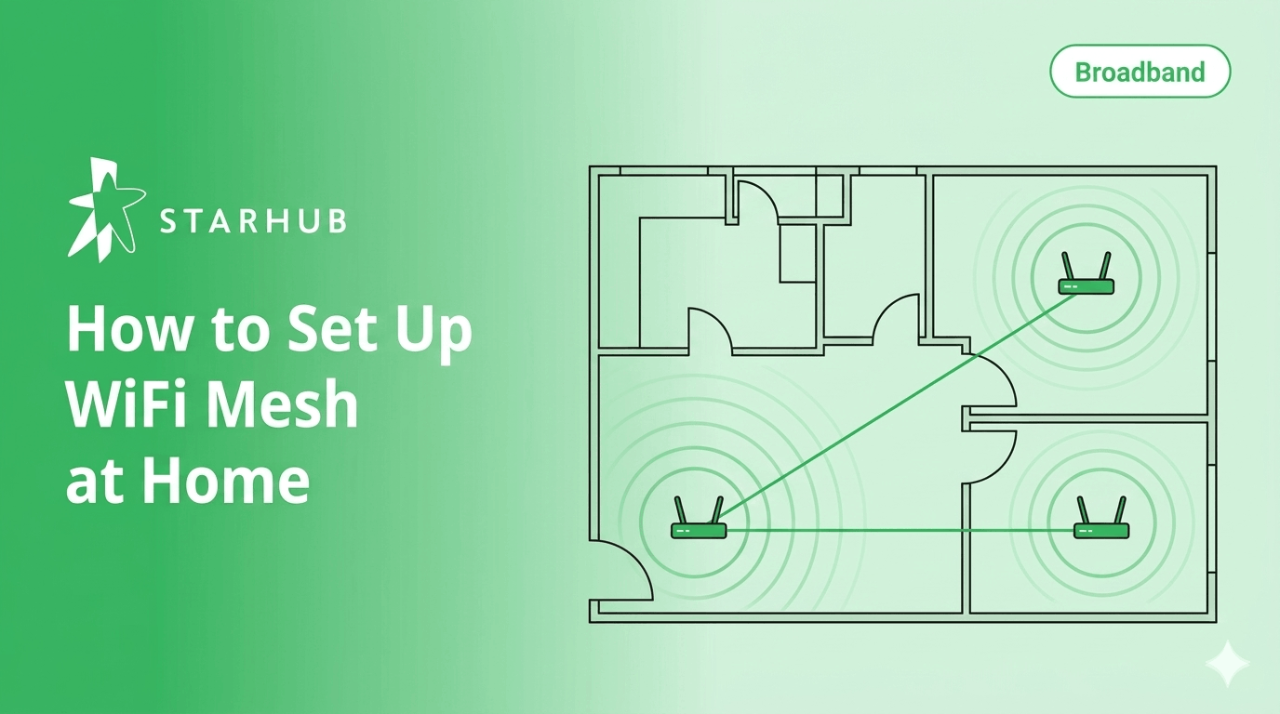
WiFi mesh is a home networking system where 2 or more units (called nodes) work together to broadcast one WiFi network across your entire home. One node plugs into your broadband modem and acts as the router. The others sit in different rooms and pick up where the first one leaves off, so the signal stays strong even behind thick walls.
💡 A regular router is a single device shouting WiFi from one spot. The further you are, the weaker the signal gets. A mesh system has multiple units communicating with each other, so there is always a node close to wherever you are. Think of it as going from one speaker trying to fill an entire house with music to a set of speakers in different rooms, all playing the same thing in sync.
For you, the practical result is this: you connect to one WiFi name, enter one password, and get full-speed internet whether you are in the living room, the kitchen, or the bedroom at the far end of the flat. Your devices switch between nodes automatically as you walk around. You never notice it happening.
How Does WiFi Mesh Work?
Every mesh system has a main node connected to your broadband modem by an ethernet cable. The other nodes, sometimes called satellites or mesh extenders, communicate with the main node wirelessly or through wired connections. Together they form one network with a single name and password, which the industry calls an SSID.
The connection between nodes is called the backhaul. On most home mesh systems, backhaul runs wirelessly over a dedicated radio band, so the band your devices use stays clear. If your home has ethernet ports in every room (standard in BTO flats built from around 2014 onwards), you plug each node into the wall port instead, and the backhaul runs over cable. Wired backhaul is faster and more stable, which means every room gets closer to the full speed of your broadband plan.
Why Singapore Homes Need Mesh More Than Most
HDB and condo walls are steel-reinforced concrete. A router delivering 300 Mbps at 2 metres typically drops to under 50 Mbps after passing through 2 of these walls. Most articles about mesh are written for overseas homes with timber or plasterboard walls. In a Singapore flat, the same router struggles to reach the next room. For homes with 3 or more rooms, mesh is the baseline for reliable WiFi. Singapore's IMDA publishes broadband quality of service data if you want to verify what speeds your connection should deliver.
WiFi Mesh vs WiFi Extender
If you have searched for ways to fix dead zones at home, you have seen both mesh systems and WiFi extenders come up as options. They address the same problem, but the way they solve it is different - affecting your speed, convenience, and household connectivity.
How a WiFi extender works: It picks up your existing router's signal and rebroadcasts it. The catch is it shares its bandwidth between receiving from the router and transmitting to your devices, which typically cuts your speed by about half. It also creates a second WiFi network name, so your phone doesn't switch automatically as you move around.
💡 An extender is a cheap patch for one dead spot in a small apartment. For anything with 3+ rooms, thick walls, or multiple people online at once, mesh gives you a meaningfully better experience and saves you the headache of juggling networks.
Mesh WiFi vs Access Point
There is a third option often discussed on forums like HardwareZone: wired access points. An access point (AP) connects to your router via ethernet cable to broadcast WiFi with zero wireless relay. Because data only goes wireless for the "last hop" to your device, APs deliver the absolute maximum speed and lowest latency.
Choose Mesh WiFi if you want simplicity
No cabling needed, app-guided setup, and seamless roaming between rooms. For most HDB and condo homes, mesh is the right call for flexibility.
Choose Access Points if you want maximum speed
If you already have ethernet ports in every room and are comfortable with manual network configuration, APs offer the highest possible throughput.
💡 Most mesh systems support wired backhaul. If your BTO flat has ethernet cabling to each room, connect every mesh node to the wall port. You get access-point speed with mesh convenience. Check StarHub's WiFi 7 routers for EasyMesh-ready options.
How Many Mesh Nodes Do You Need?
Most mesh systems are sold in 2- or 3-packs, claiming coverage for massive spaces. In a Singapore home with reinforced concrete, those numbers often drop significantly. Use the table below for realistic recommendations based on your home type and broadband speed tier.
💡 Start small, expand if needed. Buy a 2-pack and test coverage by walking around with your phone. You can always add nodes later, and overbuying is the most common mistake homeowners make.
Where Should You Place Your Mesh Nodes?
Where you put your nodes matters more than how many you buy. A well-placed 2-node system in a 4-room HDB will outperform a 3-node system hidden inside a cupboard.
Keep nodes out in the open
A shelf or TV console at waist level is ideal. Hiding nodes inside cabinets or behind sofas kills the signal strength you paid for.
The 2-Wall Limit
In Singapore, 3 concrete walls is too many for a wireless link. Ensure satellite nodes have a path through no more than 2 walls to reach another node.
Avoid Interference
Keep nodes at least 1 meter away from microwaves, fridges, and large mirrors, which act as barriers to WiFi waves.
Check our WiFi optimization guide for more general tips.
How to Set Up WiFi Mesh Step-by-Step
These steps work for all major mesh systems (TP-Link Deco, Linksys Velop, Google Nest WiFi). While app interfaces vary, the core process remains identical.
Before You Start
- ONT: Fiber modem inside your DB box is powered on.
- Cables: Have your provided ethernet cables ready.
- App: Download the relevant mesh app (Linksys, Deco, Google Home).
- Proximity: Keep nodes near each other for the initial pairing.
Setting Up Wired Backhaul in a BTO Flat
Most HDB BTO flats built since 2014 come pre-wired with ethernet. Using wired backhaul eliminates the speed loss inherent in wireless relays, ensuring every room receives the full speed of your broadband plan.
🛠️ StarHub plans include free installation by Hub Troopers. They handle the wiring, positioning, and testing for you at no extra cost. Learn more here.
What If Something Goes Wrong?
Most mesh systems pair and connect without trouble, but these 4 issues come up often enough to be worth knowing about before they happen.
✕ A satellite node won't pair
Move it right next to the main node for pairing, then relocate it once connected. If it still fails, unplug both nodes for 30 seconds, plug them back in, and try again. Check the app store for firmware updates before re-attempting.
✕ Slow speeds near a satellite
The wireless backhaul between the satellite and the main node is too weak, usually because there are too many walls in between. Move the satellite closer, reducing the wall count to 1 or 2. If your home has ethernet ports, switching to wired backhaul fixes this immediately.
✕ Devices won't roam between nodes
The most common cause: your old router is still broadcasting WiFi alongside the mesh system, so your devices bounce between the 2 networks. Disable WiFi on the old router entirely and let the mesh handle everything. If you still need the old router for IPTV or VoIP, keep it connected but turn off its wireless radios.
✕ Main node overheats in the DB box
The DB box is small and enclosed, and routers generate heat. If your node gets hot and starts dropping connections, move it out of the DB box to an open area like the TV console. Run an ethernet cable from the ONT (which stays in the DB box) to the node's new location, and leave the DB box door slightly open for airflow around the ONT.
Frequently Asked Questions
Yes. The main mesh node takes over the job of your router. You connect it to your ONT and it manages the entire network. Your old router should be switched off or removed to prevent interference.
A mesh extender is a satellite node in a WiFi mesh system. It extends your network's coverage as part of a unified mesh with seamless roaming. Different brands use names like nodes, satellites, or points, but they all function the same way.
Run an ethernet cable from your existing router's LAN port to the mesh node's WAN port. Disable WiFi on the old router so the mesh is the only wireless network. Many systems have an "access point mode" specifically for this.
For reliable roaming and best performance, yes. While the EasyMesh standard exists, mixing brands typically means losing features like smart traffic routing and seamless handoff.
WiFi 6 handles most homes well. WiFi 7 adds a 6 GHz band with less interference and higher speeds. If you're on a 5Gbps or 10Gbps plan and want to future-proof your setup, WiFi 7 is the better long-term choice.
For studio or 2-room flats, a single high-quality router is usually sufficient. Mesh makes a real difference in 3-room flats or larger, where signals must penetrate multiple concrete walls.
Get the Most from Your Fibre Connection
3Gbps Fibre Broadband - $39.91/month
TP-Link HB410 WiFi 7 router, ideal for 1-2 users with simple connectivity needs
5Gbps Fibre Broadband - $45/month
TP-Link HB710 WiFi 7 router (Tri-band BE18000), ultra seamless connection for 2-4 users
10Gbps UltraSpeed Broadband - $59.34/month
TP-Link EB810v WiFi 7 router (Tri-band BE22000), smooth 4K streaming for 4+ users and devices
Disclaimer:
This content is provided for general information and convenience. While we take care in preparing our articles, readers should refer to official sources or professional advice for specific, up-to-date details.
Related Articles
ONT vs ONR: What's the Difference?
Boost Your WiFi Strength: Coverage & Connection Tips
What is a Router? Modem vs Router Explained

Back