
Important Update: TV+ Set-Top Box Software Update FAQ
Why did I receive this notification?
Our records indicate that your TV+ set-top box was unable to automatically update to the latest software version. To ensure continued, uninterrupted access to TV+ services and features, you are required to manually update your set-top box.
What software versions should my TV+ set-top box be running and how do I check the versions?
Please ensure that your TV+ set-top box is updated to the following version:
- App Version: 4.619.311
To check the TV+ app version:
- Switch on your TV+ set-top box, navigate to Settings.
- Select About App
How do I update my TV+ set-top box?
Follow these simple steps:
- Power OFF and ON the TV+ set-top box from the main power supply.
- Navigate to Settings (gear icon).
- Select System and Select More Settings
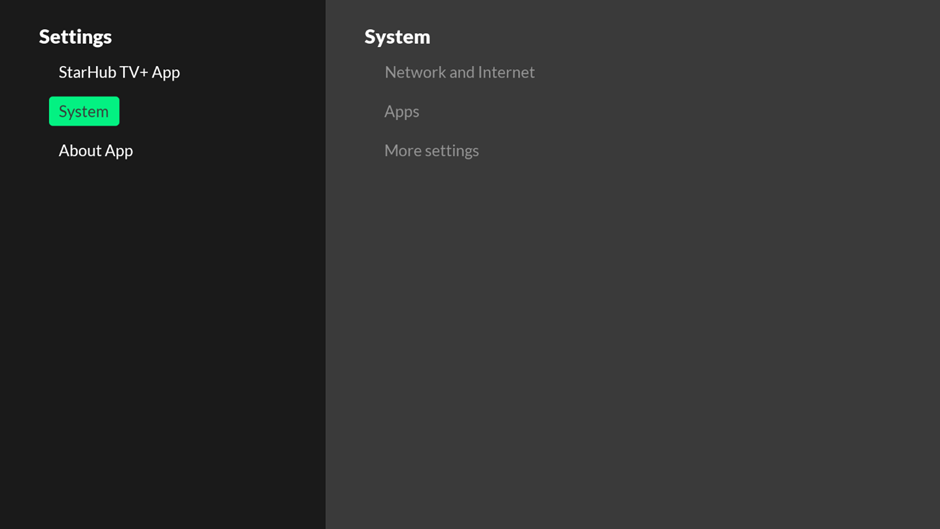
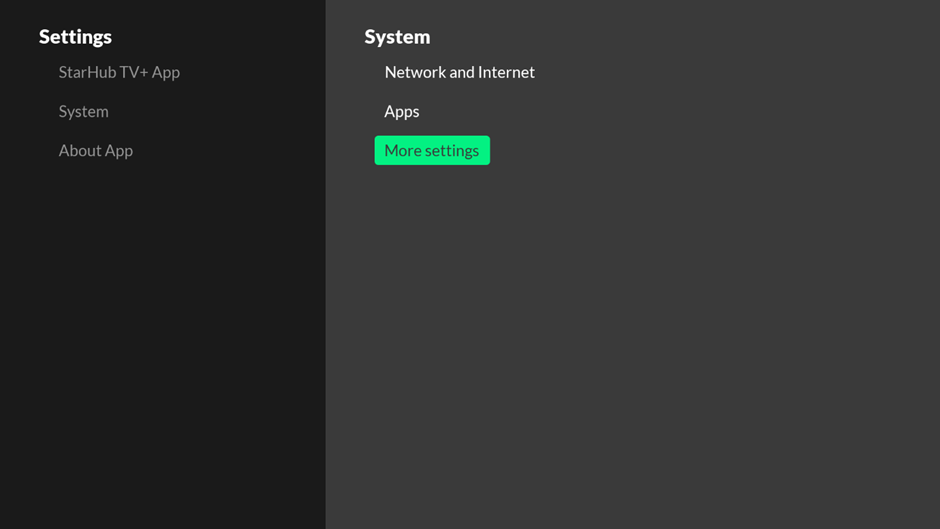
- Select Device Preferences and select About
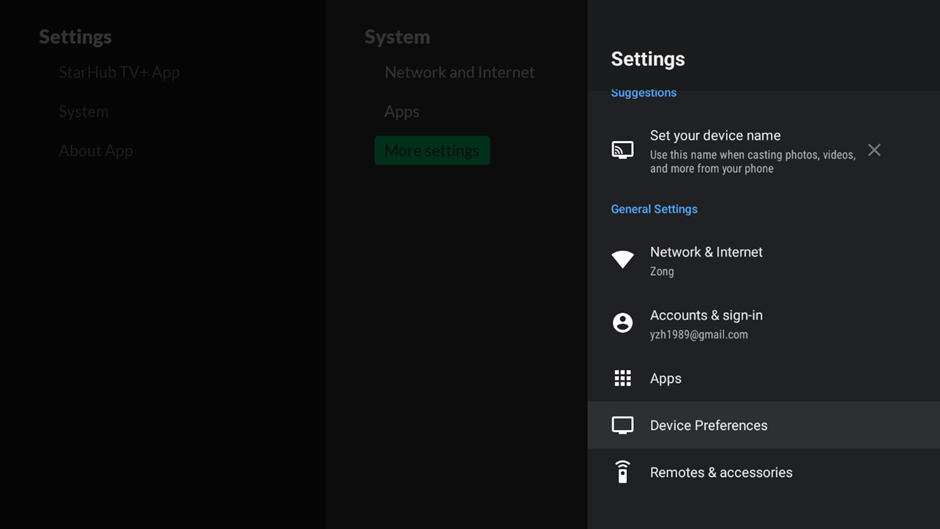
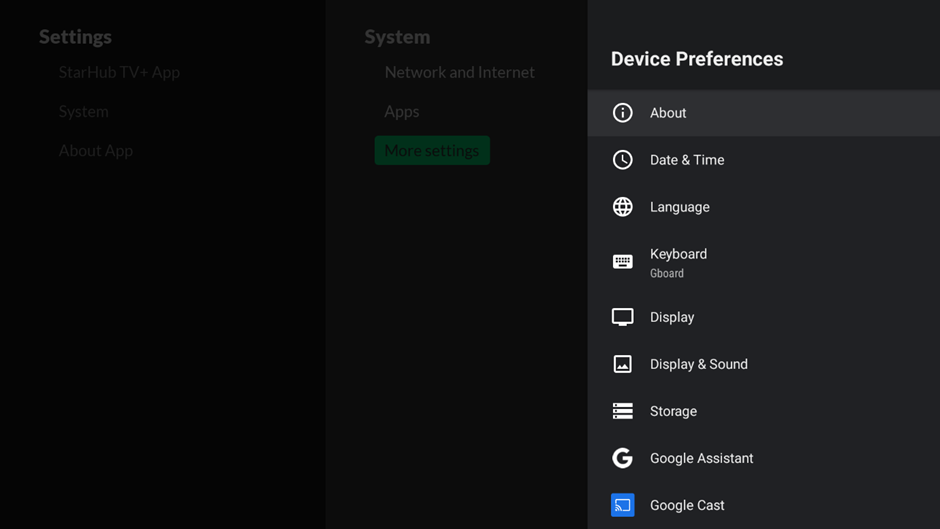
- Select System Update followed by Check for update
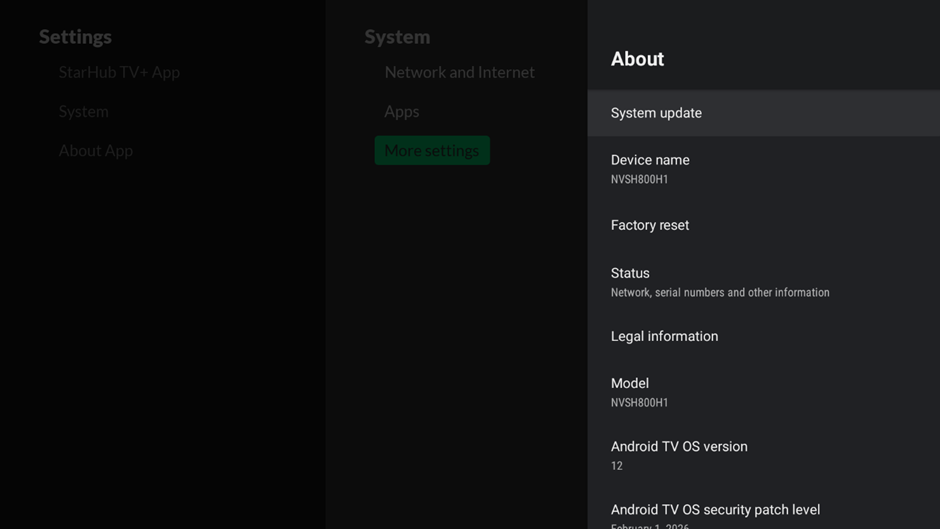
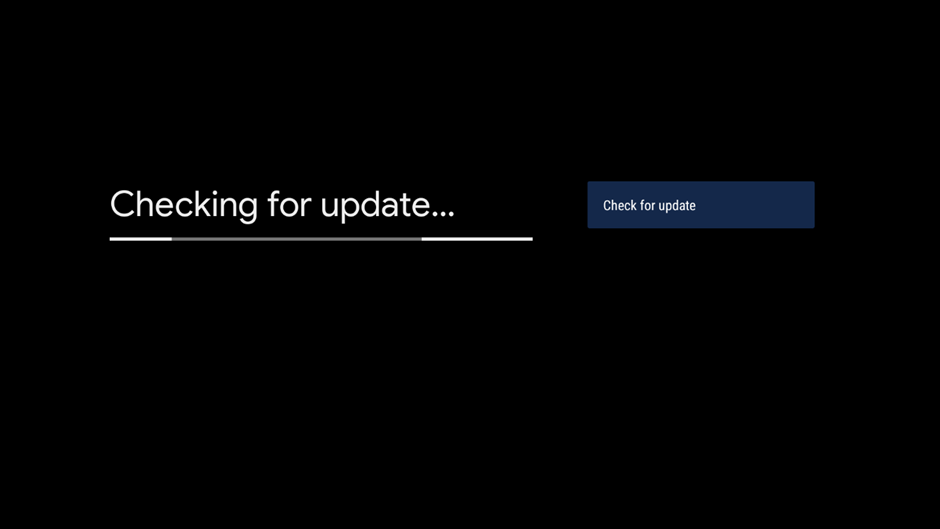
- Follow the on-screen instructions to complete the update process.
What should I do if the update is unsuccessful?
If the update fails to complete, your set-top box may not have enough free storage space. Try the following steps to clear space and retry.
- Uninstall any unused or unwanted apps from your set-top box to free up space.
- Go back to Settings > System > More Settings > Device Preferences > About > System Update > Check for update.
- Retry the software update.
What should I do if the firmware upgrade still fails?
If the update continues to fail after freeing up storage space, perform a Factory Reset on your TV+ set-top box.
Important Warning: Performing a factory reset will permanently erase all internal storage, including your Google Account, downloaded apps, and custom set-top box settings.
Before you begin: Ensure you have your Hub iD and password, as you will need to log back in once the process is complete.
How to perform a Factory Reset:
- Switch on your TV+ set-top box and navigate to Settings (gear icon).
- Select System > More Settings.
- Select Device Preferences > About.
- Select Factory Reset and confirm your selection.
After the Reset:
Once the factory reset completes and your set-top box restarts, you will need to:
- Re-pair your remote control by following the on-screen prompts.
- Reconnect to your Wi-Fi network (this step is skipped automatically if you are using a wired Ethernet connection).
- Sign back in using your Hub iD and password.
How do I verify that my update was successful?
After the update finishes, you can check your device's current software version under your set-top box Settings menu. Confirm that your device displays: App Version: 4.619.311.
What happens if I do not update my TV+ set-top box?
If you do not update your TV+ set-top box by 31 July 2026, you will not be able to stream your StarHub TV+ content until your software is updated to the required version (4.619.311).
Where can I get help if I am unable to update my set-top box?
If you continue to experience issues after attempting the troubleshooting steps above, you may visit our StarHub Shops for an 1-1 exchange.
Top FAQs
Getting Started with StarHub TV+
How do I get access to Mediacorp Free-to-air channels via StarHub TV+ Box?
You can enjoy free-to-air channels on the StarHub TV+ Box with an Internet connection from any Internet service provider. Simply login using your Hub iD and password.
Are there any differences in terms of the viewing experience for Mediacorp Free-to-air channels via StarHub TV+ Box and Digital TV?
The StarHub TV+ Box will be connecting to video streams for Mediacorp free-to-air channels over the Internet, similar to how Mediacorp’s mewatch app is providing Live TV access for their users. As such, there will be some differences in terms of your viewing experience.
| Free-to-air channel viewing experience | Via StarHub TV+ Box | Via Digital TV |
| Programme availability | Most except some programmes without Internet streaming rights | All |
| Channel loading time | Varies based on your Internet connectivity | Shorter |
| Multiple audio tracks | No, default audio track* | Yes, supported |
| Switch subtitle languages | No, default subtitle track* | Yes, supported |
*Note: based on content availability from source
You may contact Mediacorp Customer Support for any feedback at the following:
- Email: tellmediacorpdigital@mediacorp.com.sg
- Leave a feedback: https://www4.mewatch.sg/reportaproblem
How do I log in to StarHub TV+ Box?
There are 2 options to login on the StarHub TV+ Box:
Easy Login with Hub iD

• You can access the full suite of TV+ features including Parental Controls, R21 content (if available) and Instant Buy via Store.
• If you are already logged in with your Hub iD on your StarHub TV+ mobile app, simply go to More > Pair with your TV to scan the on-screen QR code. Once the pairing is completed, you will be able to view the Home Screen, and you can start to enjoy your favourite streaming services, apps, and TV shows in one place.
• Alternatively, you may also choose to log in using your Hub iD and password using your remote control and the on-screen keyboard.
To sign up for a Hub iD or reset your Hub iD / password, please visit this link.
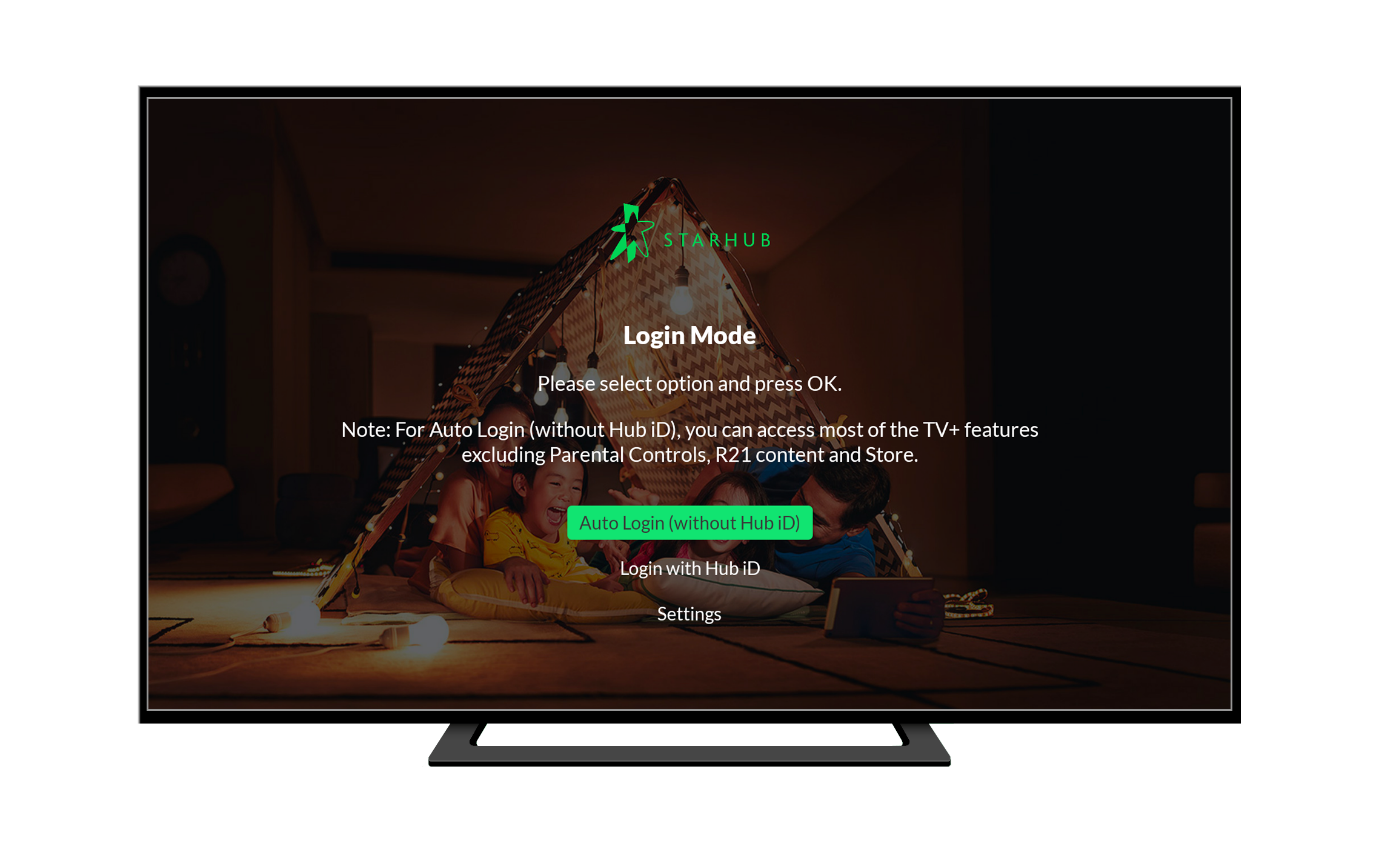
Auto Login (without Hub iD)
How do I set up my Hub iD?
Check if you have an existing Hub iD, otherwise please create an email address to set up your Hub iD account.
To create a Hub iD, simply scan this QR code.
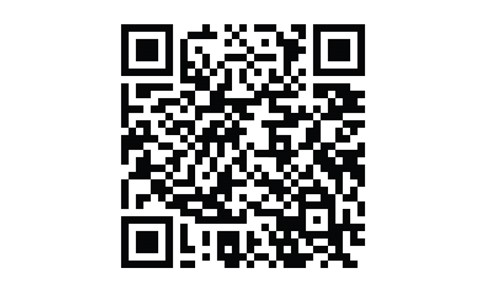
Or visit starhub.com/hubid-signup. Enter your email address and password. Check the box beside I’m not a robot. Then select Next.
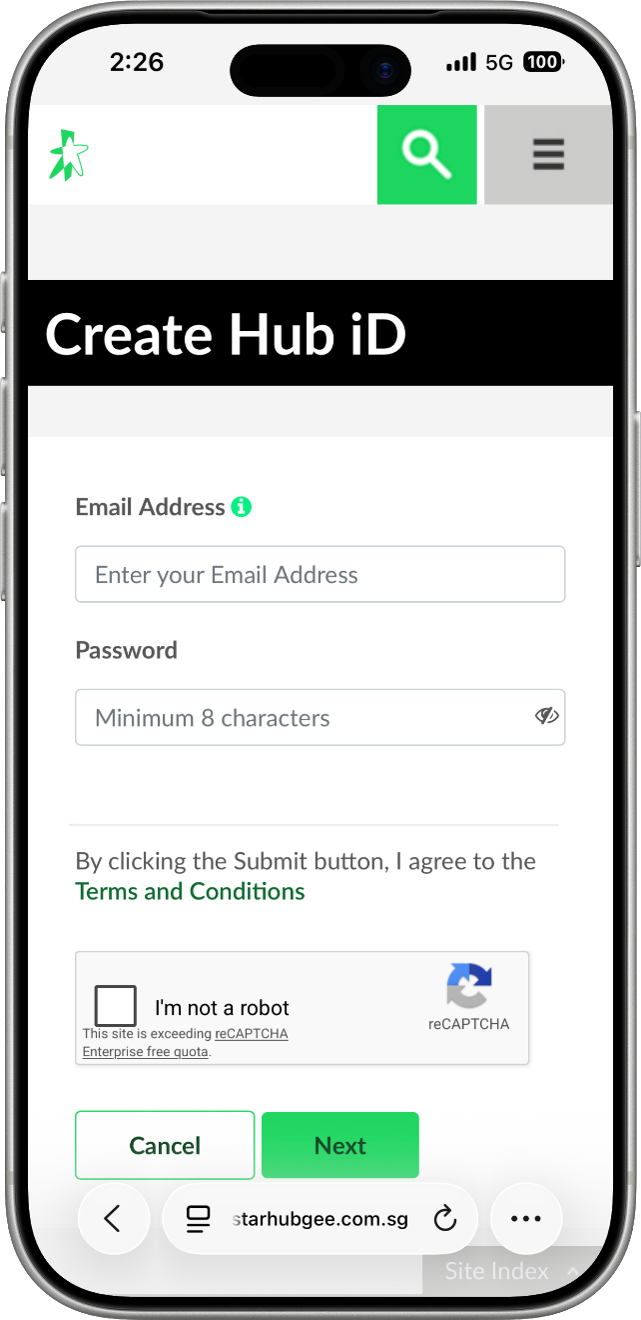
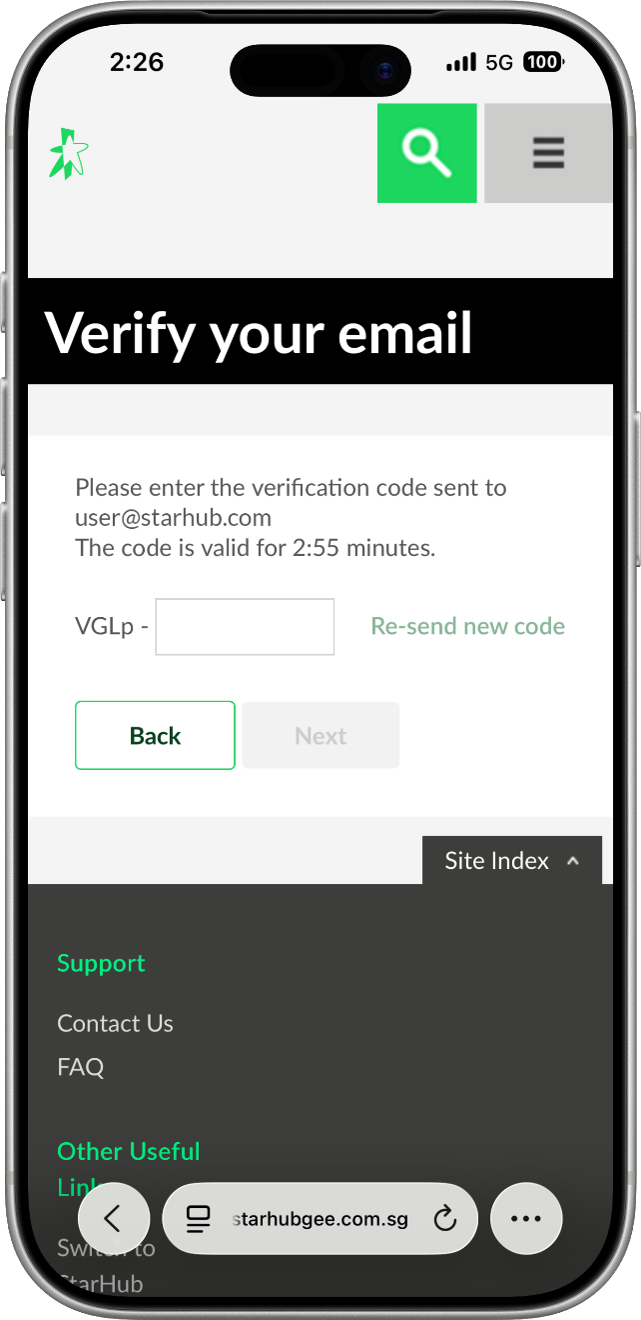
Enter the verification code that was sent to your email inbox. Then select Next.
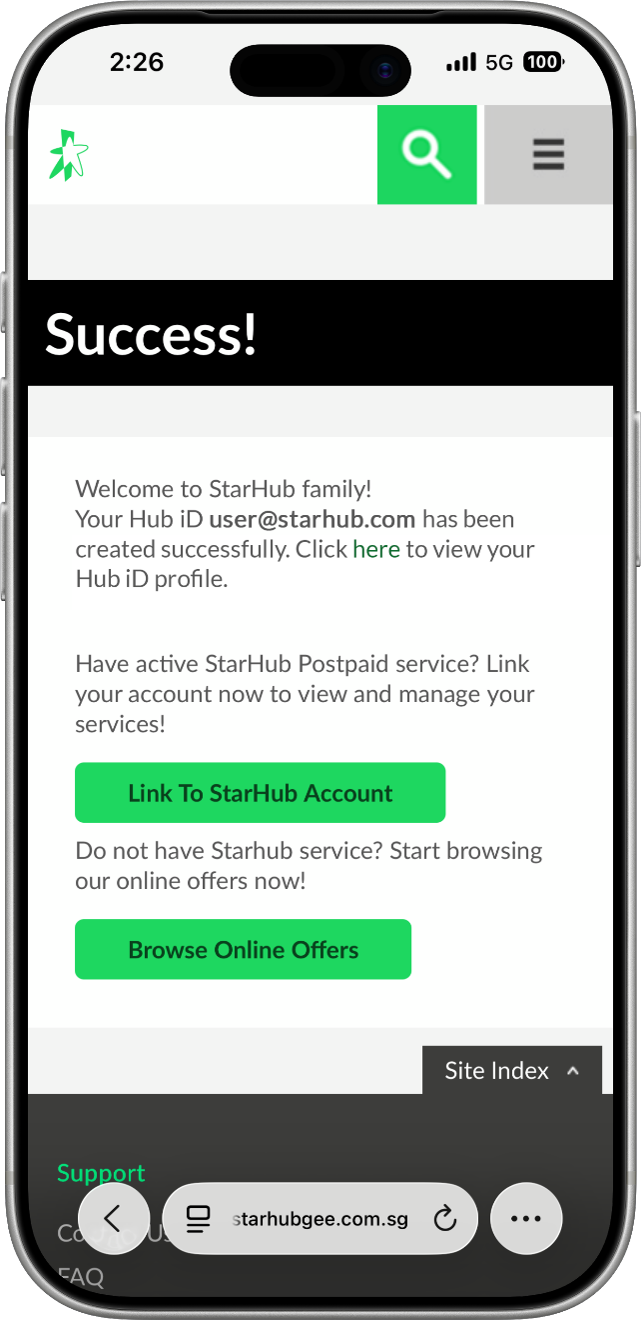
When you see this screen, you have completed the Hub iD creation.
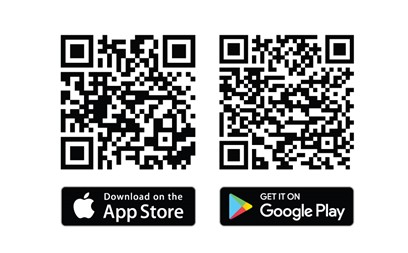
If you already have a Hub iD, download and install the StarHub TV+ mobile app (download from App Store or Google Play Store via the respective QR codes) and login with your Hub iD and password.
If you would like to change your Hub iD password:
• Log in to your Hub iD.
• Click on Change password under Hub iD profile.
Enter your current and new password and click Save.

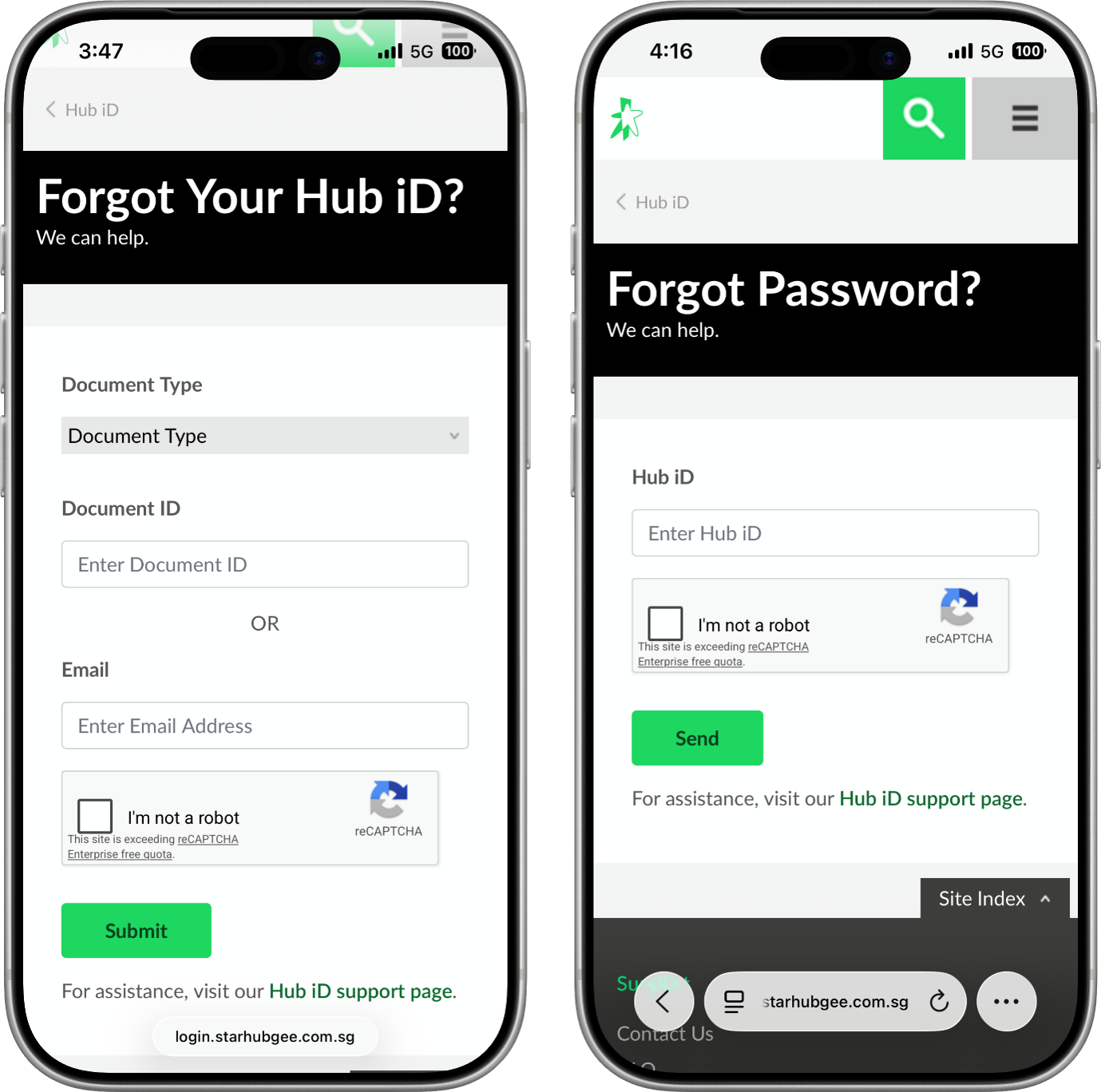
If you forgot your Hub iD or password:
• Click here.
• Select either Forgot your Hub iD? Or Forgot your Password? to proceed.
How do I set up my Google account?
To set up your Google account for the first time, refer to the steps below:
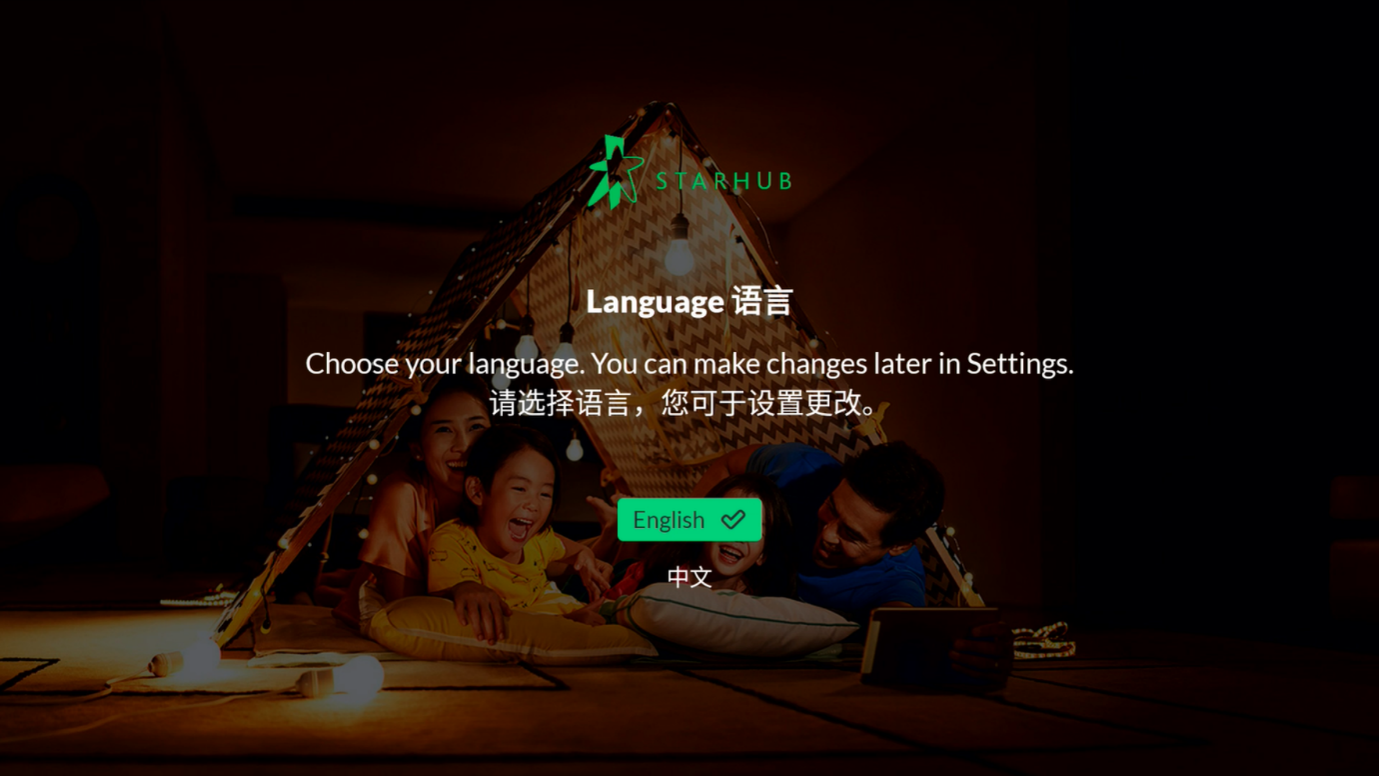
STEP 1: Select your preferred language for the set-up process.
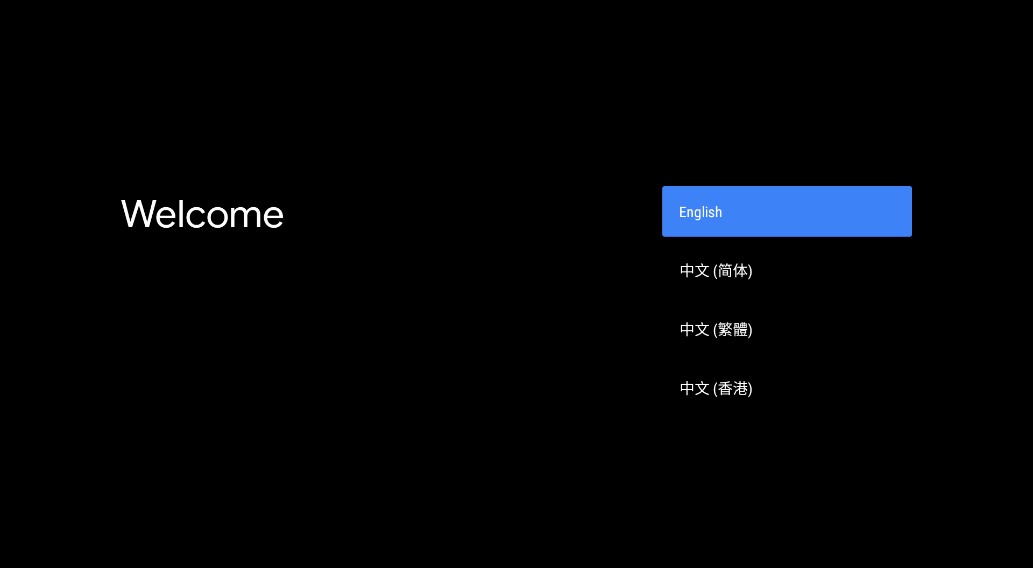
If your StarHub TV+ box is connected to your router via the Ethernet cable, you will see this screen.
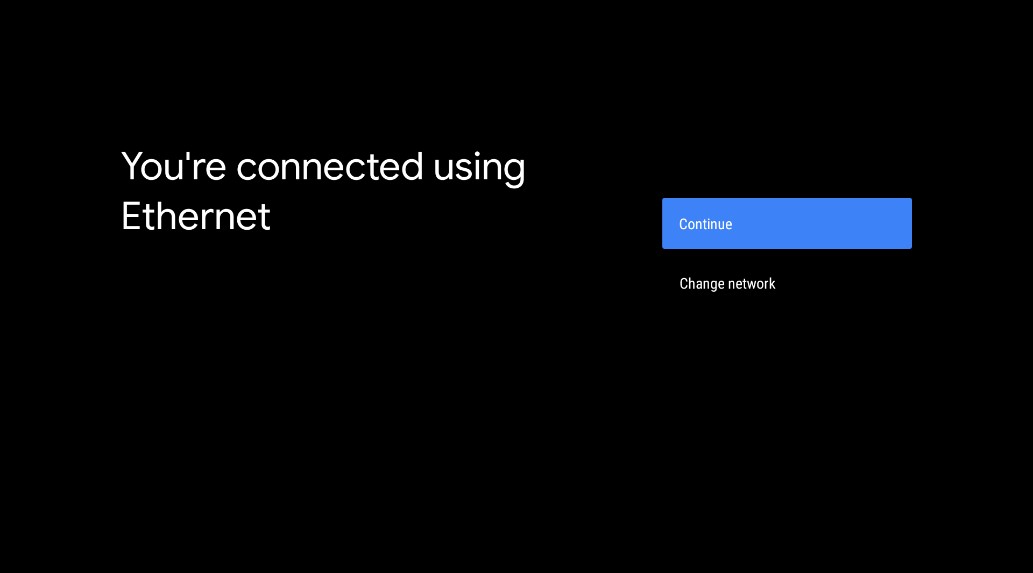
Select Continue to proceed. If your StarHub TV+ box is not connected to your router via the Ethernet cable, you will see this screen.
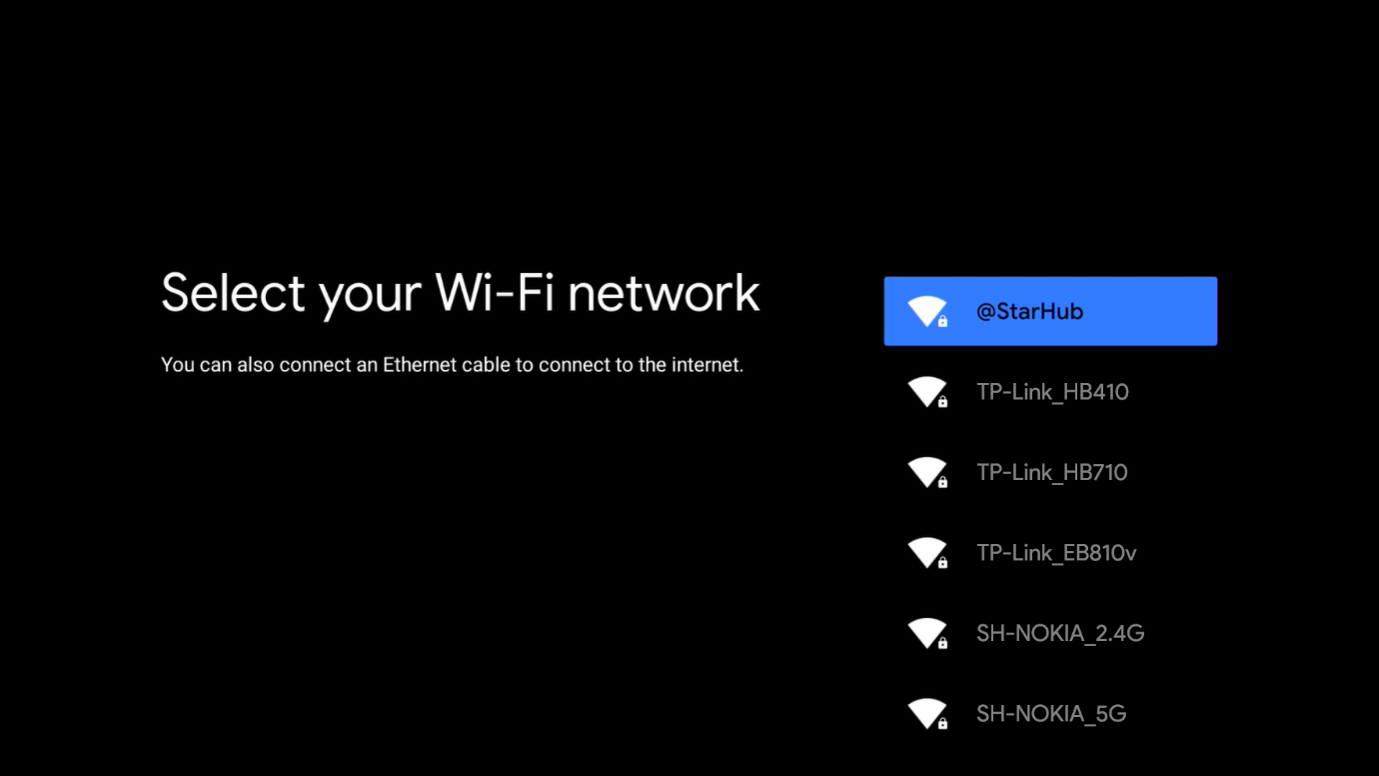
Select your Wi-Fi network and input the Wi-Fi network password to proceed.
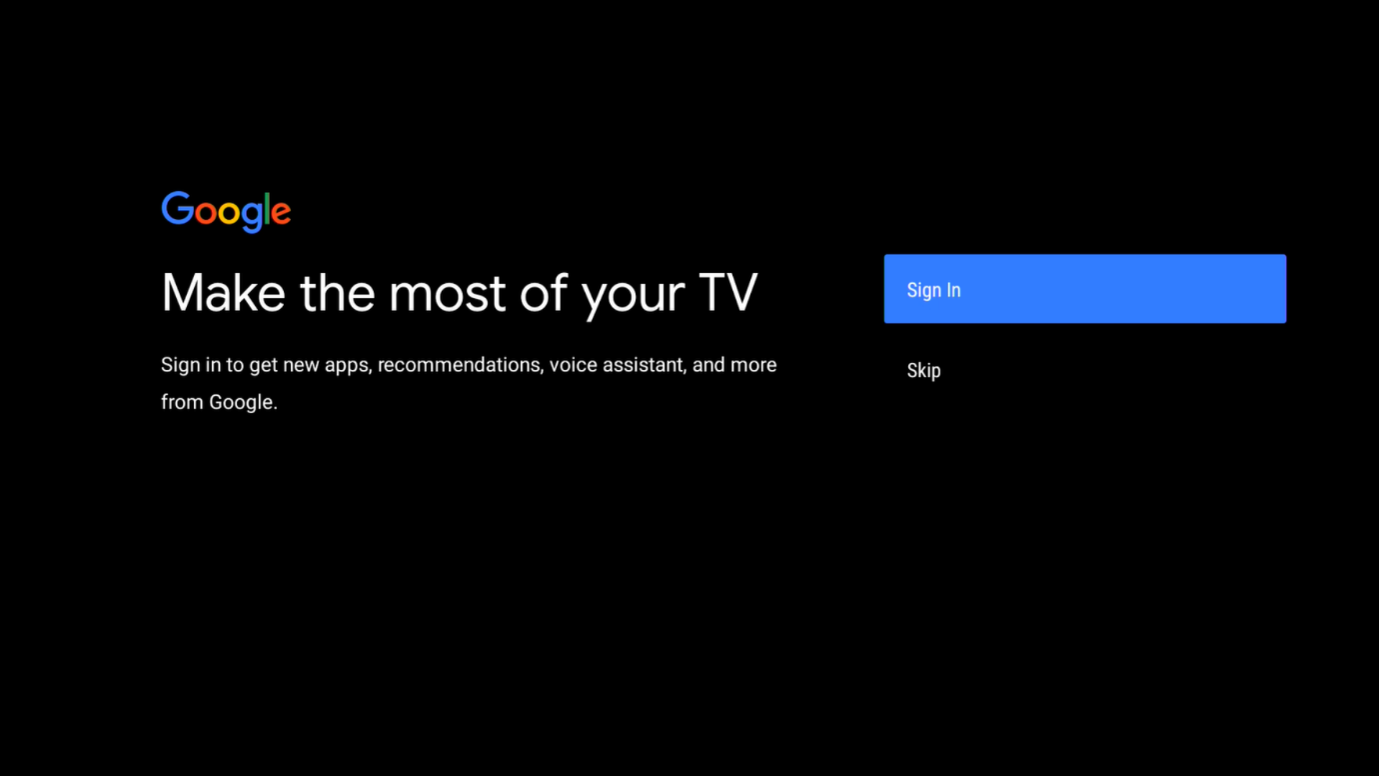
If you have a Google account, select Sign In. We recommend that you sign into your account, so you can enjoy Android TV services such as the Google Play Store. If you do not have a Google account, select Skip. Continue with Step 3.
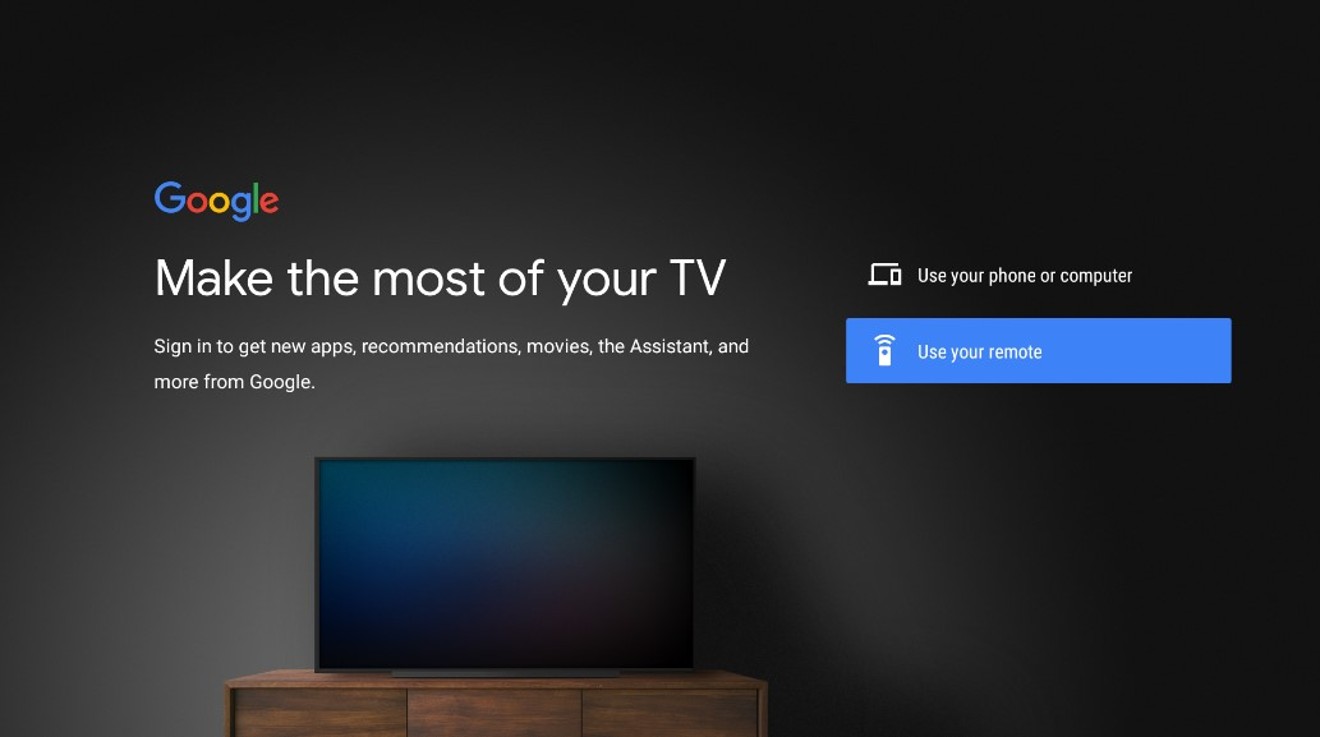
STEP 2: To sign in using your remote control, select Use your remote.
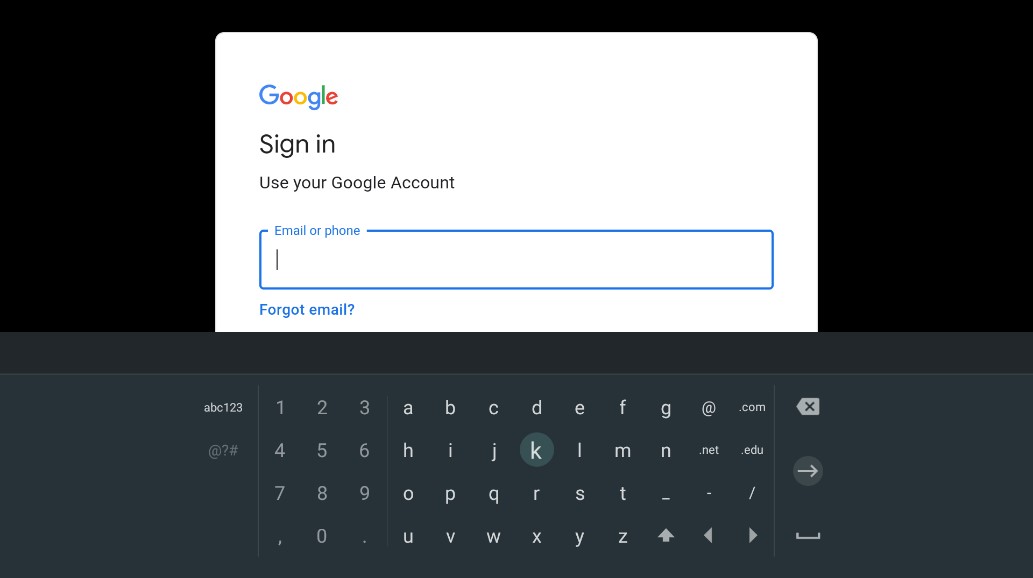
Using the D-Pad Navigation on your remote, enter your Google account log-in and password.
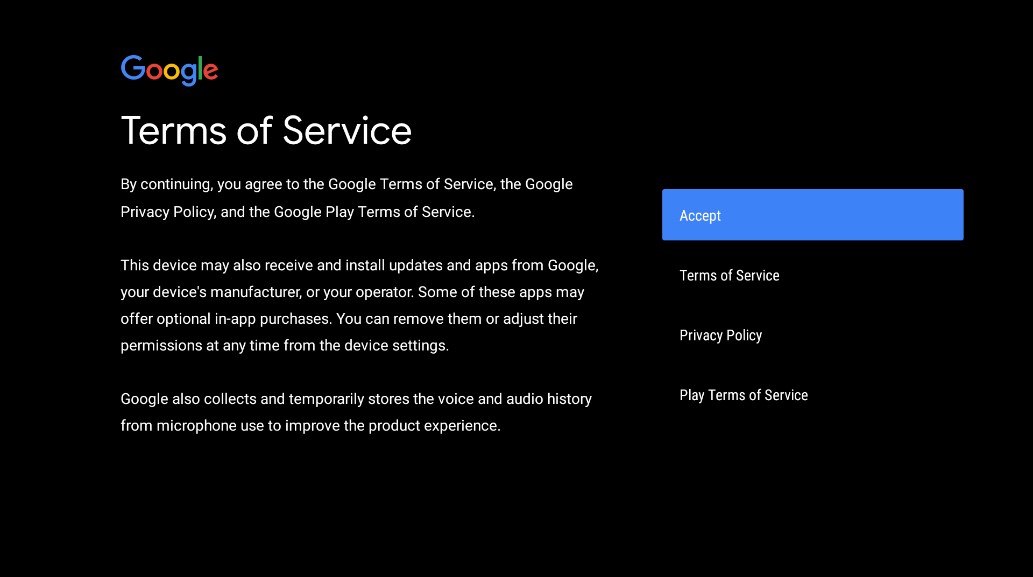
STEP 3: Select Accept to accept the Terms of Service.
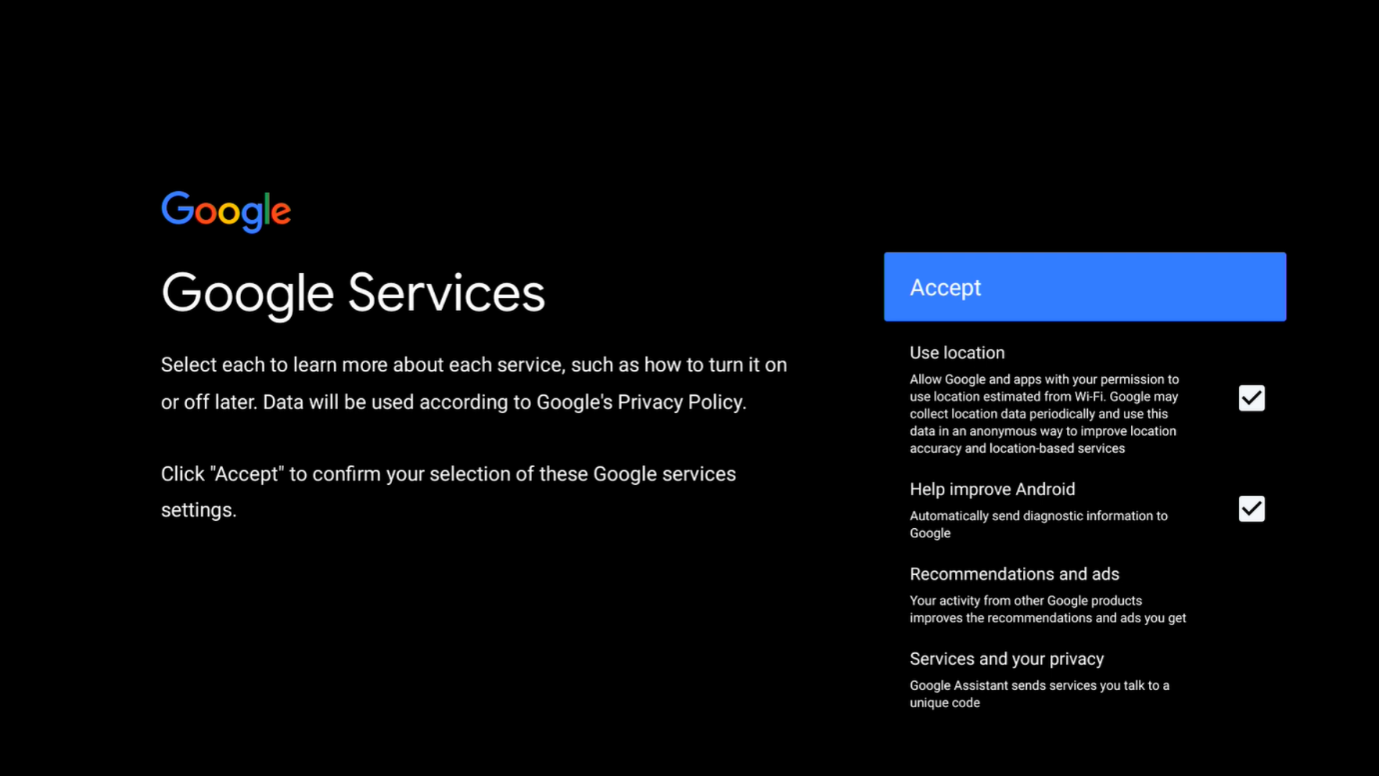
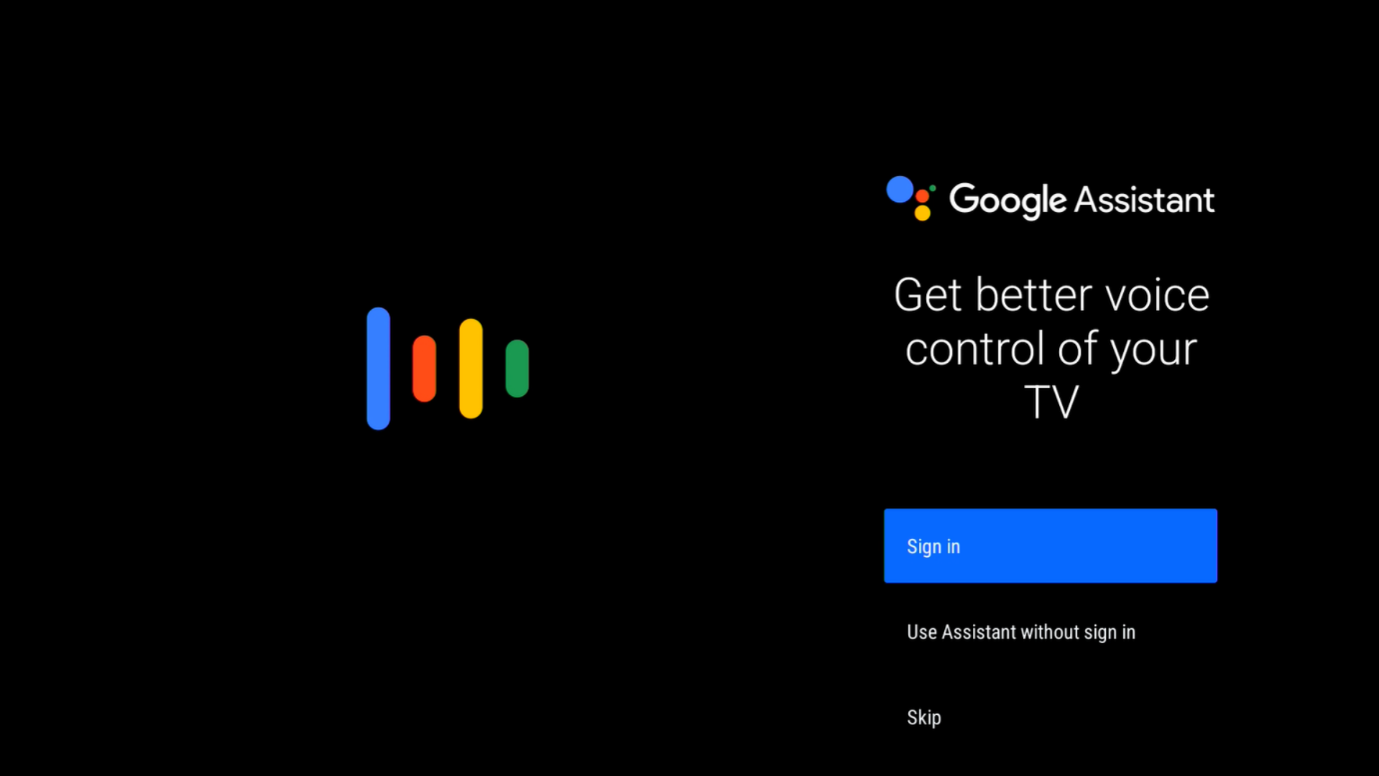
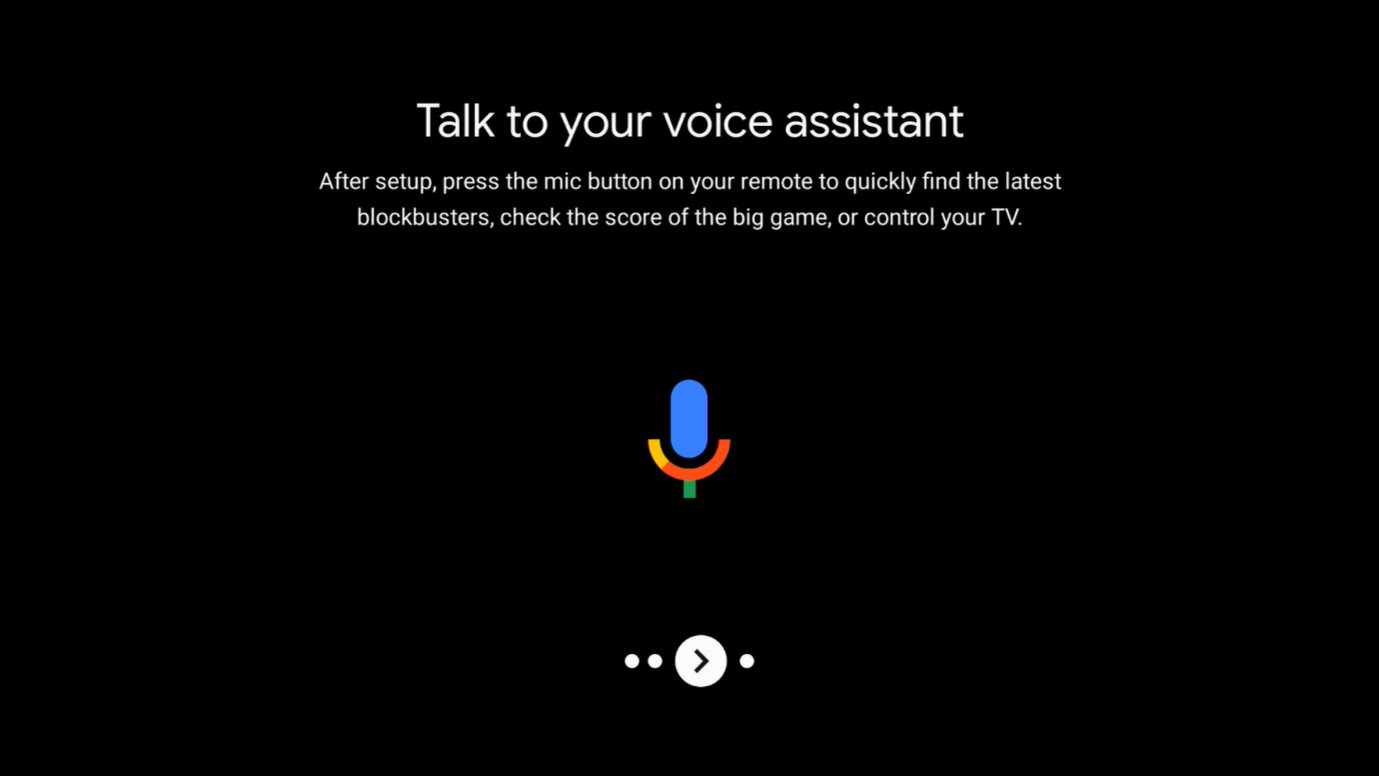
STEP 4: Follow the on-screen instructions to set up your Google Assistant.
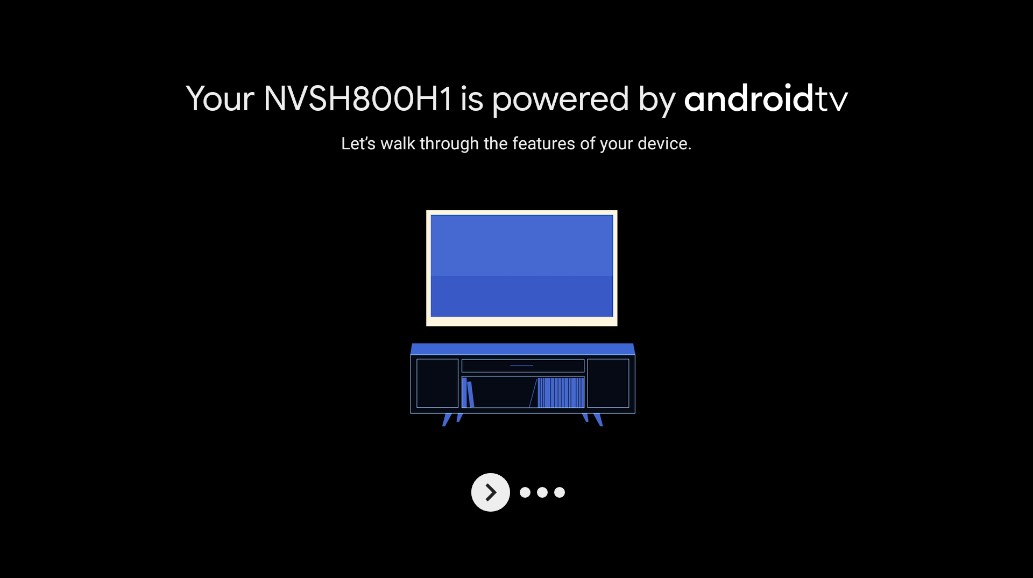
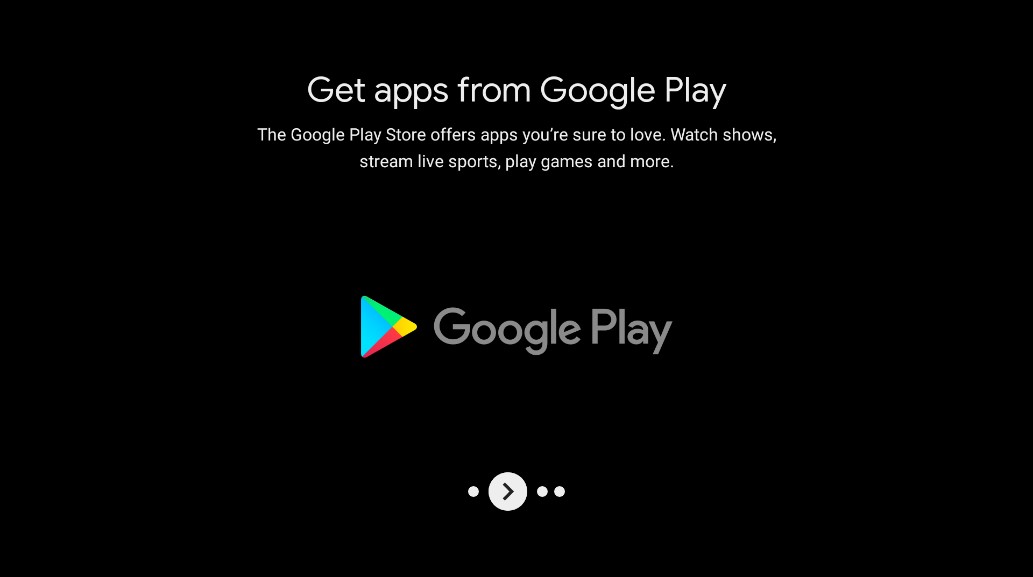
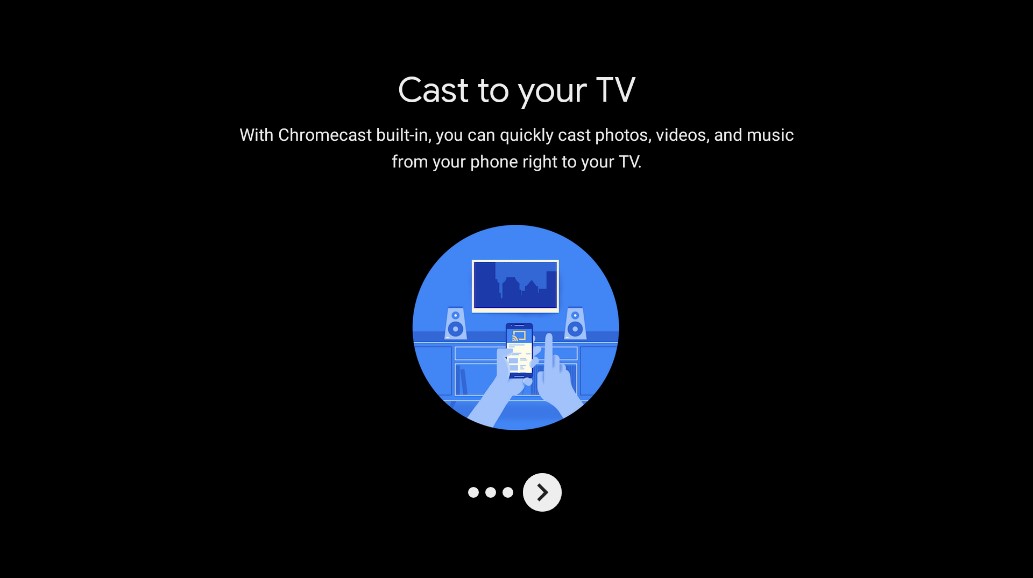
STEP 5: You will be introduced to the Google features available on the StarHub TV+ Box. Press the right arrow button on your remote control to continue.
How do I set up my streaming apps?
Simply visit our support page.
Under TV & Entertainment, you’ll find Activation Guides with detailed instructions for popular streaming apps. Just select the app you want to set up and follow the guide provided.
My StarHub TV+ Box is not working or responding. What should I do next?
Please reboot your StarHub TV+ Box by powering off and on the power supply to try again.
Ensure that you are running on the latest software version. If the issue persists, you may visit our StarHub Shops for an 1-1 exchange.
If your StarHub TV+ Box is exhibiting other symptoms, you can refer to the other help articles in the Troubleshooting Guide section.
How do I pair my remote control?
To pair your remote control, simply follow the steps below:
STEP 1: Insert the 2 AAA batteries into the remote control.
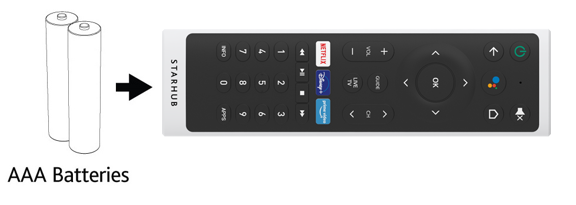
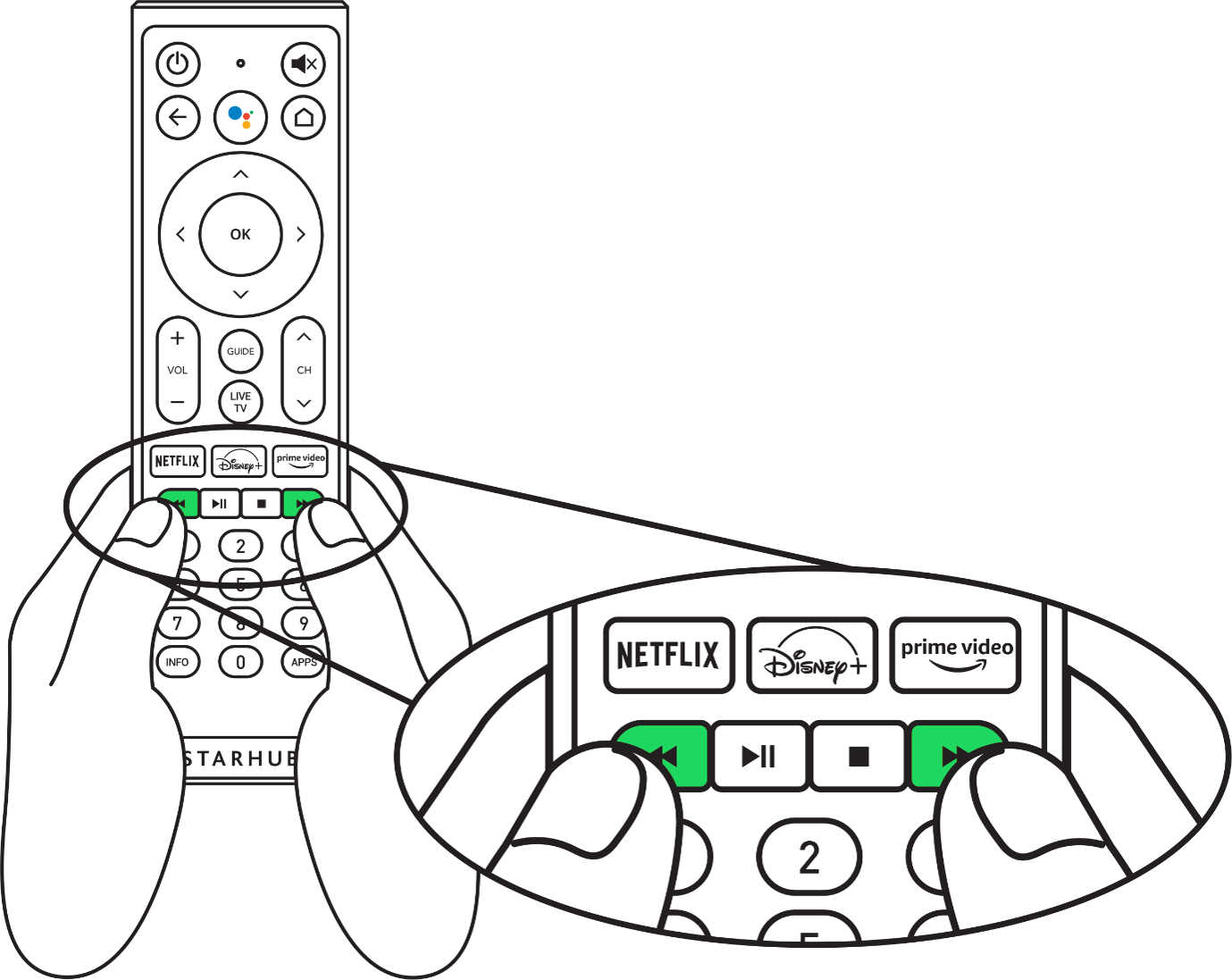
STEP 2: Press and hold the Rewind and Fast Forward buttons on your remote control at the same time for 5-10 seconds to pair your remote control.
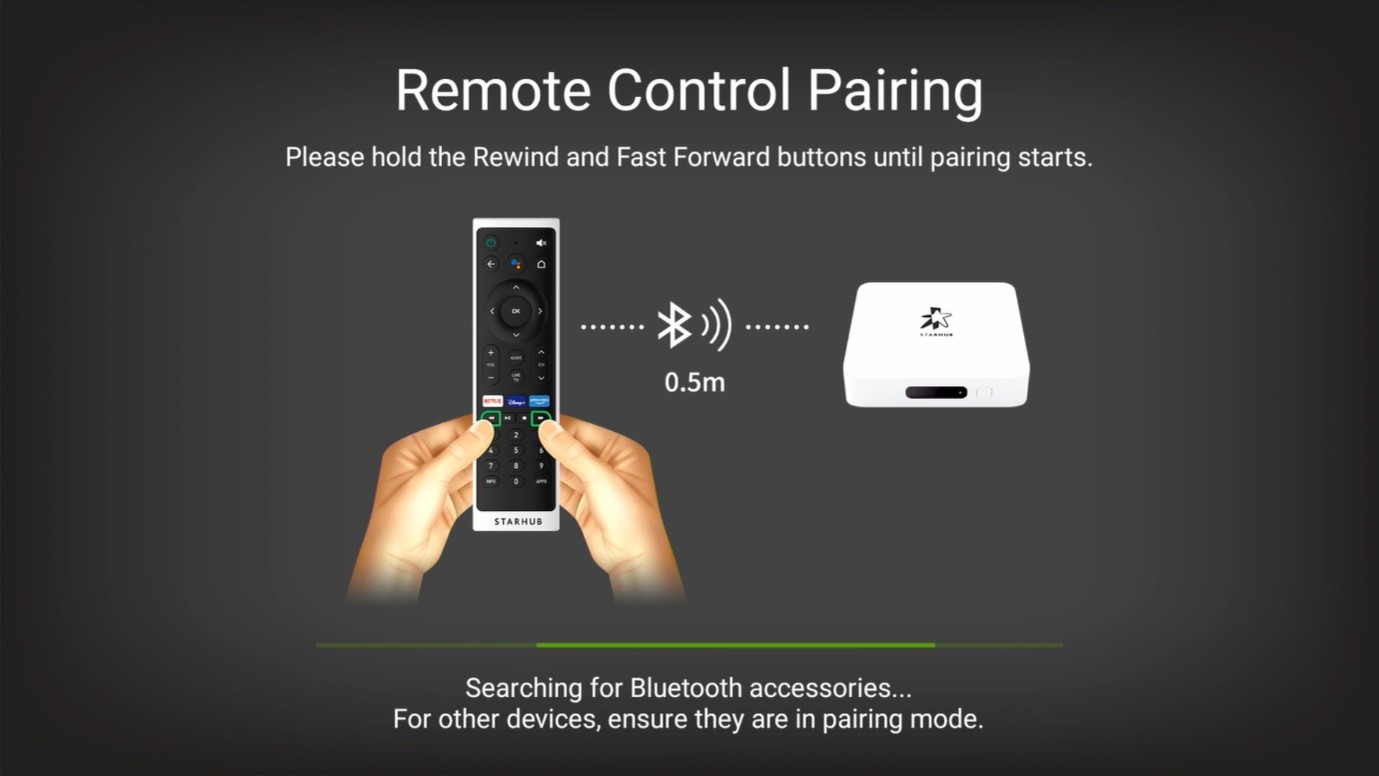
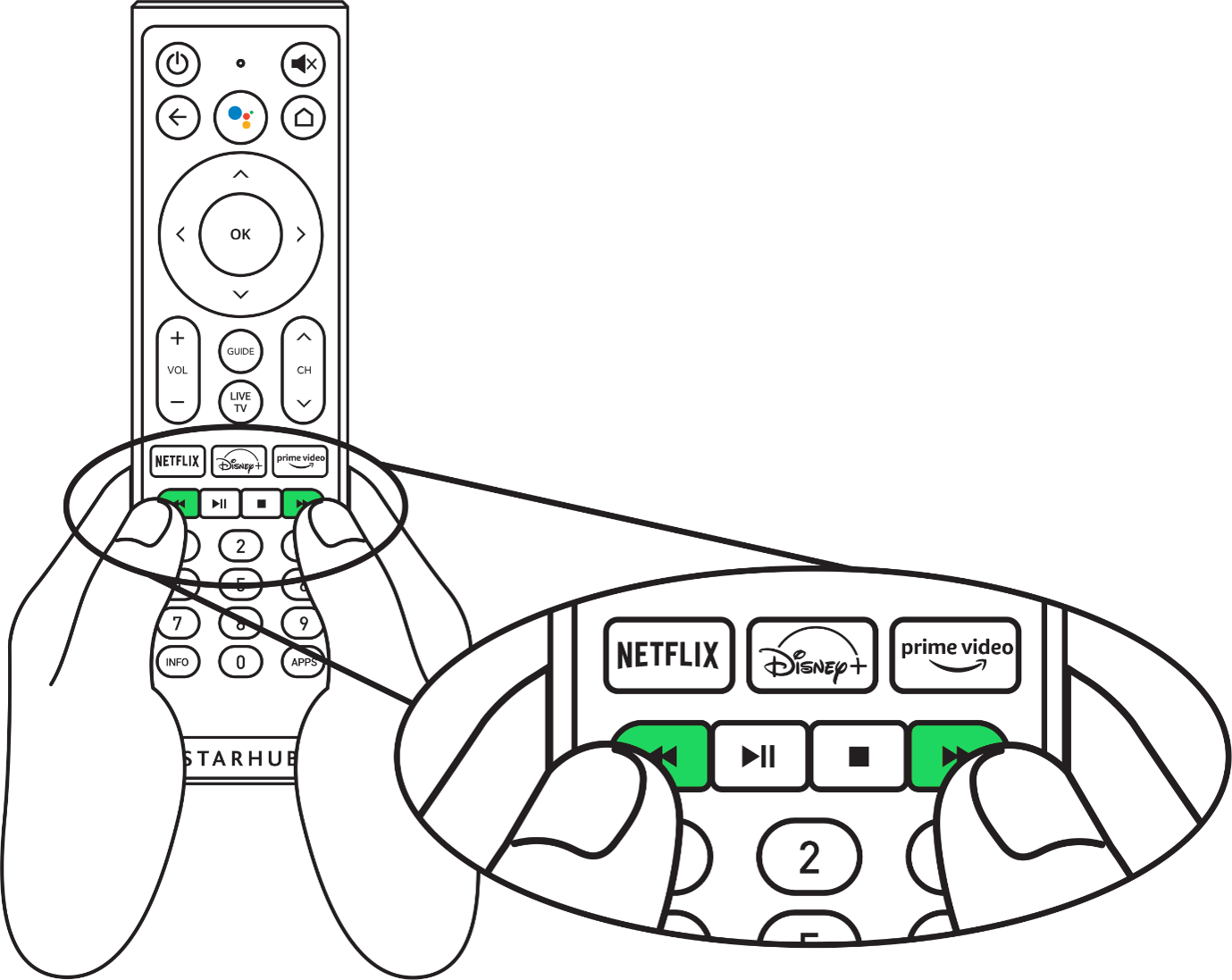
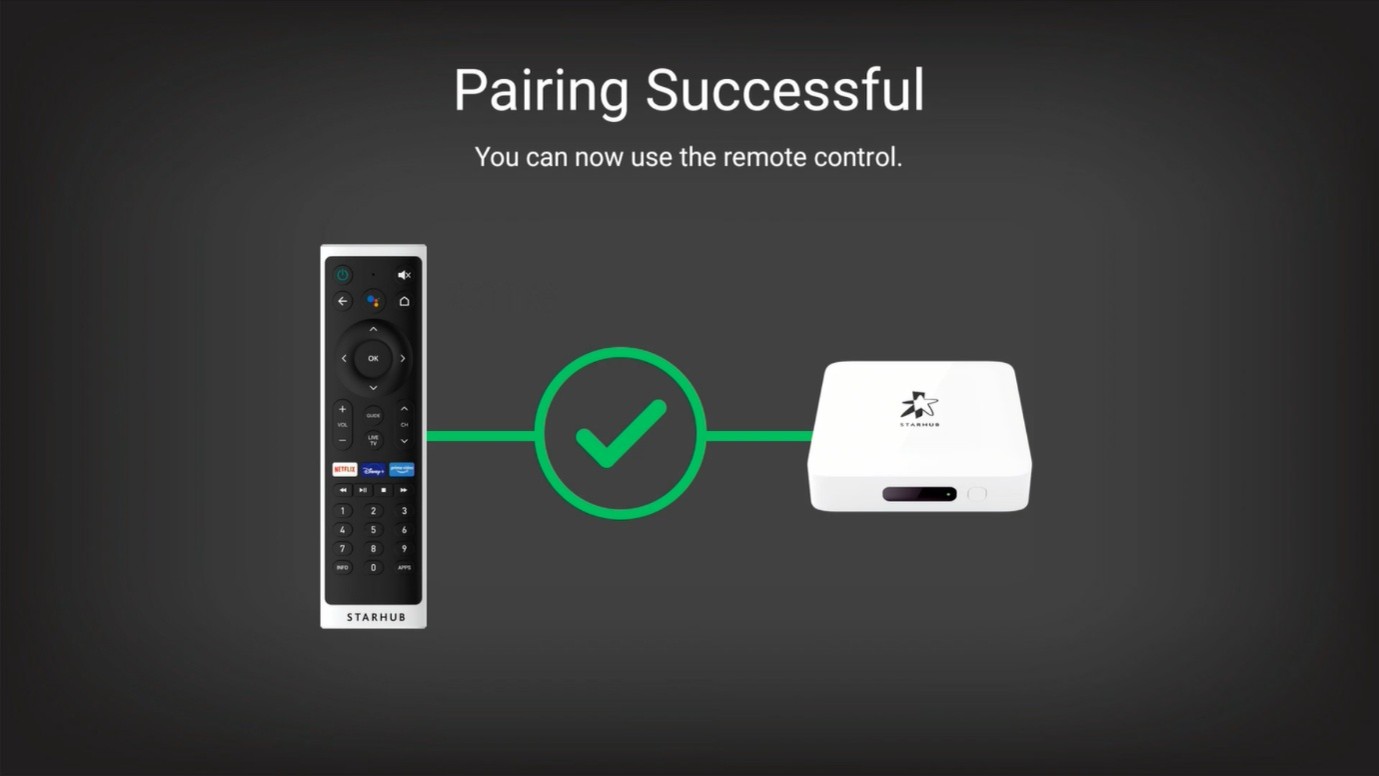
Note: Each remote control is uniquely paired to a specific TV+ Box during setup. If you have more than one TV+ Box at home, ensure you use the remote control assigned to that box. Using a different remote control may result in the box not responding to commands.
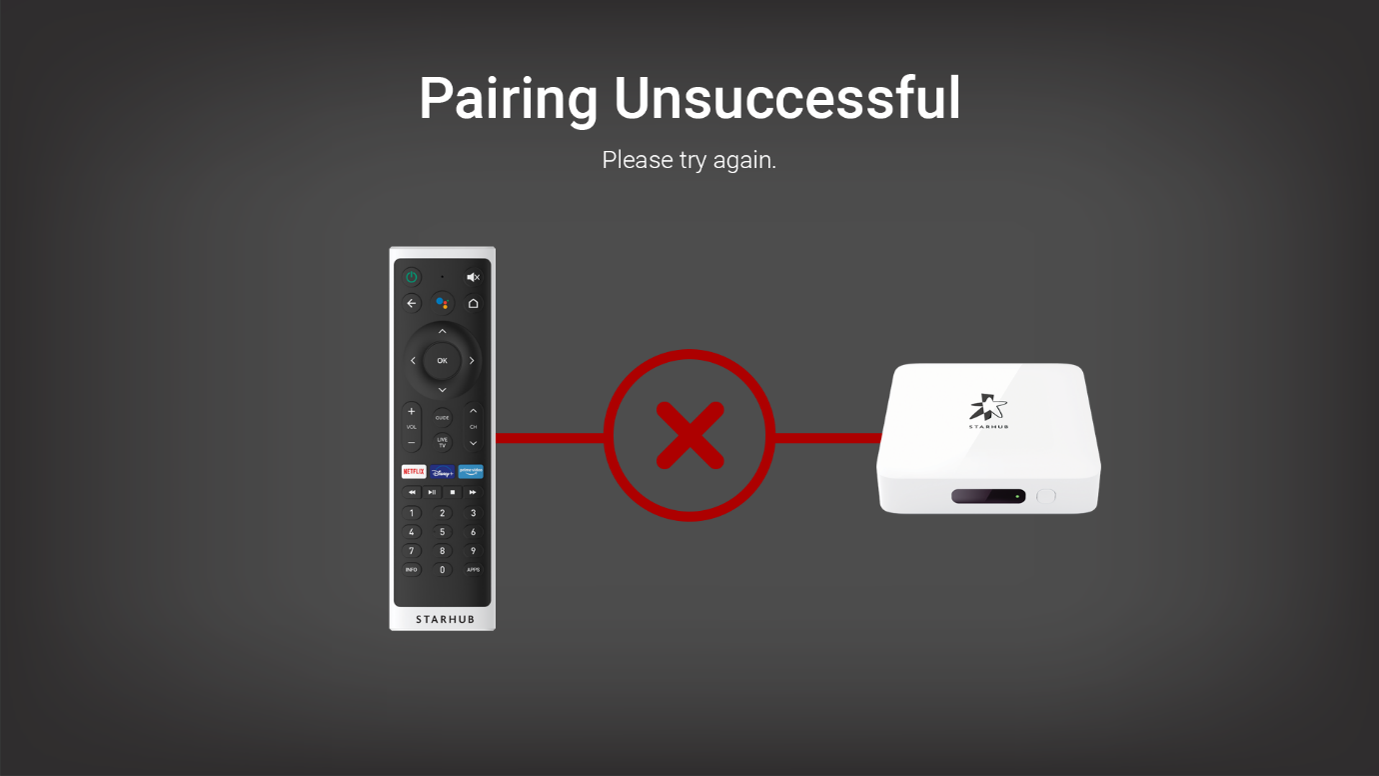
I have issues using the Remote Control. What should I do next?
Try to remove and re-insert the batteries and try again. If the low battery indicator is lit, replace your batteries. If the issue persists, try to unpair your remote control by going to Android TV Settings > Remotes & Accessories > StarHub Remote Control > Unpair and re-pair to try again.
If the issue persists, you may visit our StarHub Shops for an 1-1 exchange.
Getting Started and Connectivity
How do I get started on my StarHub TV+ Box?
To set-up the StarHub TV+ Box for the first time, you can refer to the Quick Start Guide (included in the packaging if available) and follow the installation steps accordingly.
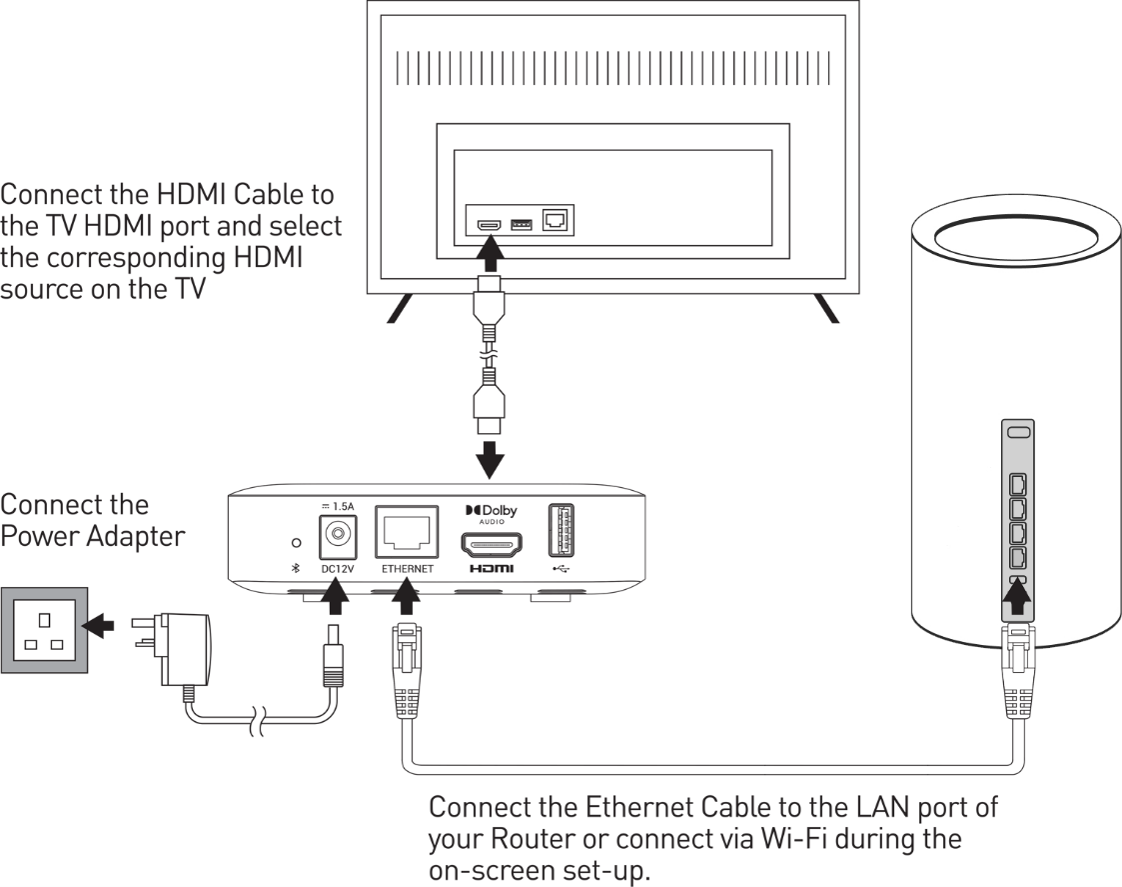
Step 1: Connect the StarHub TV+ Box to a power socket with the power adapter.
How do I determine that the position of the StarHub TV+ Box is suitable for wireless connection?
Ideally, the StarHub TV+ Box should not be more than 1 room away (1 wall apart) from your current router position. After setting up, you can check the connection status by going to Settings > System > Network and Internet and refer to your connected Wi-Fi network..
- Frequency: Recommended to connect to 5GHz networks (if supported)
- RSSI value: It should be lower than -60dBm.
- Press OK to check the Signal Strength: Ensure that it is Good or Excellent.
If your streaming experience is not ideal, you can try to re-position your router or consider additional routers to improve your home Wi-Fi coverage.
How do I log in to StarHub TV+ Box?
There are 2 options to login on the StarHub TV+ Box:
Easy Login with Hub iD
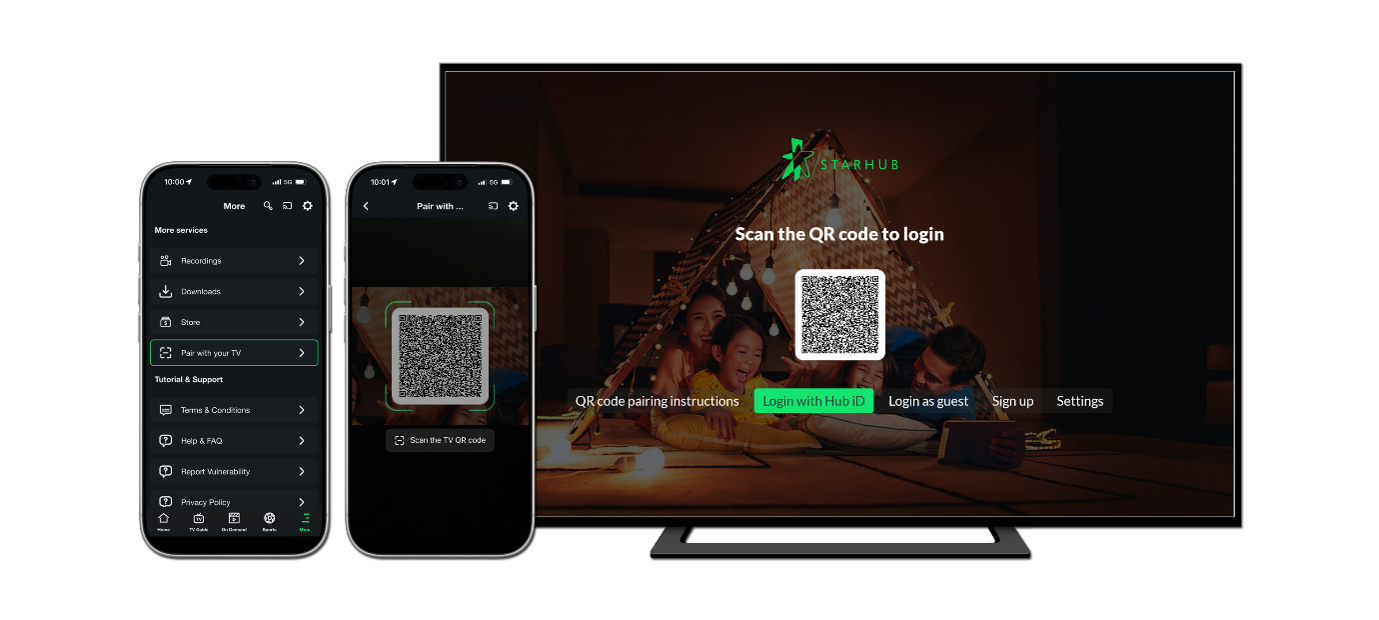
• You can access the full suite of TV+ features including Parental Controls, R21 content (if available) and Instant Buy via Store.
• If you are already logged in with your Hub iD on your StarHub TV+ mobile app, simply go to More > Pair with your TV to scan the on-screen QR code. Once the pairing is completed, you will be able to view the Home Screen, and you can start to enjoy your favourite streaming services, apps, and TV shows in one place.
• Alternatively, you may also choose to log in using your Hub iD and password using your remote control and the on-screen keyboard.
To sign up for a Hub iD or reset your Hub iD / password, please visit this link.
Auto Login (without Hub iD)
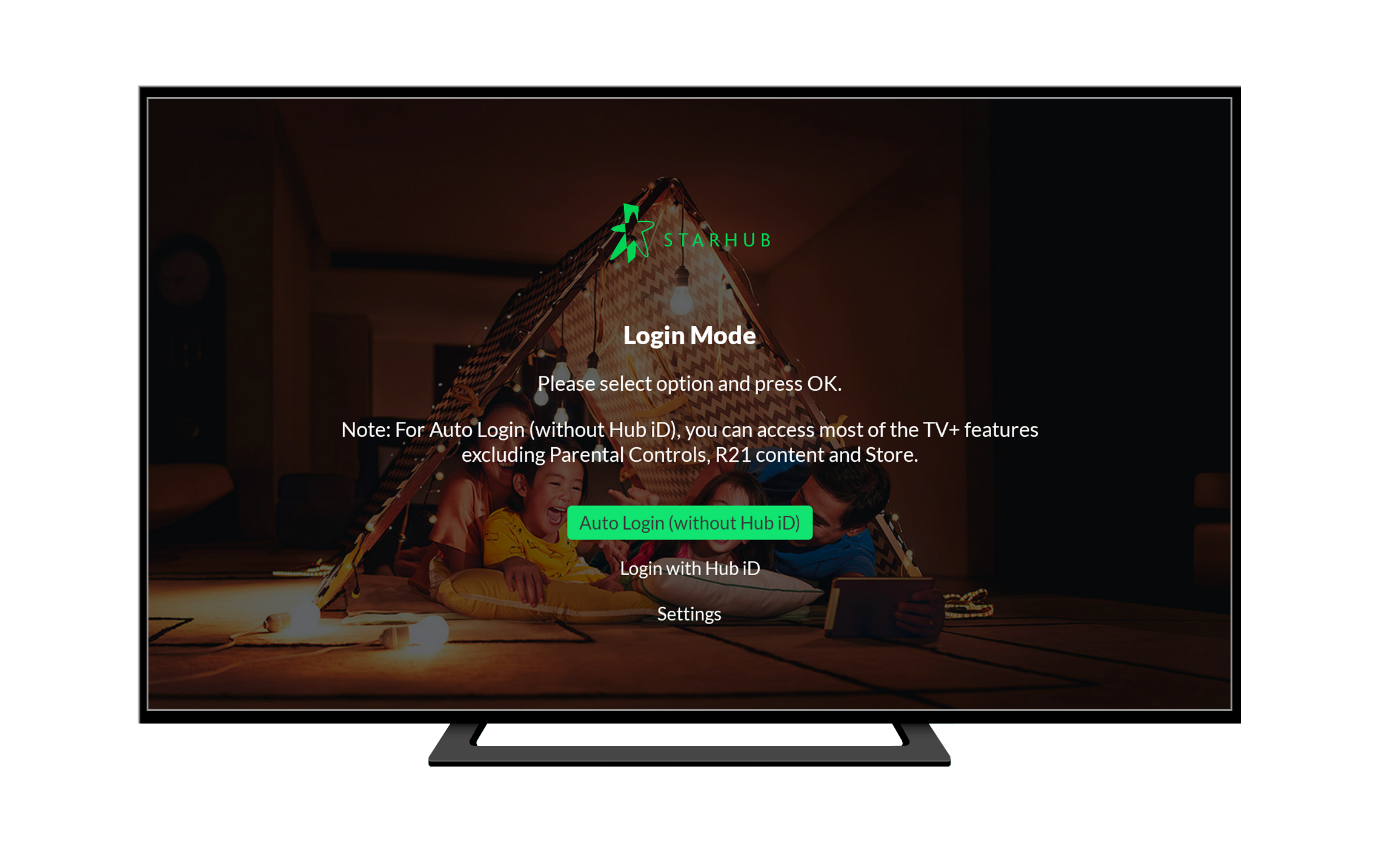
• This is only available on StarHub TV+ set-top boxes as a simpler option where you can access most of the TV+ features excluding Parental Controls, R21 content and Instant Buy via Store.
I am unable to log in on the StarHub TV+ Box to access my subscription. What should I do?
- Please ensure that your StarHub TV+ Box is connected to the Internet.
If your Internet connectivity is fine, please ensure that your StarHub TV+ Box software is up to date. - Navigate to Settings and go to Device Preferences > About > System update > Check for update. You will be notified of any new software update if it is available.
- If your StarHub TV+ Box is updated, go to Settings > Apps > StarHub TV+ and press OK. Select Clear data and press OK to proceed. Once done, you can try to login again.
- If you can login on the StarHub TV+ mobile app but unable to do so with the same Hub iD and Password or via Auto Login on the StarHub TV+ Box, please contact StarHub for further assistance.
- If you have forgotten your Hub iD or password, you can reset it any time at this link.
Why am I unable to watch certain programmes on Mediacorp Free-to-air channels on StarHub TV+ Box?
Certain programmes on Mediacorp Free-to-air channels may not be available due to restricted broadcasting rights.
What is the recommended Internet speed I should have to stream on the StarHub TV+ Box?
The recommended Internet connection speed for High-Definition (HD) or Ultra HD (4K) content would be 10Mbps or 25Mbps respectively.
For Wi-Fi connections, connect to the 5GHz Wi-Fi network if supported by your Broadband router as streaming quality may be affected if the Wi-Fi signal strength is weak.
For a better streaming experience, it is recommended to use a wired connection using an Ethernet cable.
What is the maximum display output of the StarHub TV+ Box?
The StarHub TV+ Box supports TV signals of 50Hz frequency and up to Ultra HD (4K) video resolution but is subject to content availability and your available Internet connection speed.
Does the StarHub TV+ Box support HDMI outputs for computer monitors or projectors?
The StarHub TV+ Box only supports HDMI output to High-bandwidth Digital Content Protection (HDCP) compliant TV sets for content copyright protection.
Does the StarHub TV+ Box support HDMI-CEC?
| S/N | User Action | Expected Behaviour |
1 | When you switch on your StarHub TV+ Box. | Your TV set will be automatically switched on. |
2 | When you put your StarHub TV+ Box on standby. | Your TV set will not be automatically switched off. |
3 | When you switch on your TV set. | Your StarHub TV+ Box will be automatically switched on. |
4 | When you switch off your TV set. | Your StarHub TV+ Box will be automatically put on standby. |
If you are encountering a black screen or flashing screen on your TV, the HDMI cable or the HDMI-CEC functionality of the StarHub TV+ Box may not be compatible. Please refer to your TV manufacturer guide on how to disable HDMI-CEC in your TV settings.
Will the StarHub TV+ Box count towards the limit of 2 concurrent streams and 5 registered devices?
No, the StarHub TV+ Box comes with its dedicated streaming capacity and does not count towards the limit of 5 registered devices.
I have activated the Parental PIN in the StarHub TV+ mobile app, do I need to repeat the same for the StarHub TV+ Box?
No, the Parental PIN is synchronized to your TV subscription.
If you have different TV Subscriptions for your StarHub TV+ mobile app and StarHub TV+ Box, you will need to set up a different Parental PIN.
How do I change or reset my Parental PIN?
I have created an R21 PIN in the StarHub TV+ mobile app, do I need to repeat the same for the StarHub TV+ Box?
No, the R21 PIN is synchronized to your TV Subscription.
If you have different TV Subscriptions for your StarHub TV+ mobile app and StarHub TV+ Box, you will need to set up a different R21 PIN.
How do I change or reset my R21 PIN?
Setting up your StarHub TV+ Box
Installation Steps for your StarHub TV+ box
Getting Started with StarHub TV+
Classic Mode
What is Classic Mode?
Enabling Classic Mode on your StarHub TV+ Box allows you to tune in to your last viewed channel automatically whenever the StarHub TV+ Box is turned on.
How do I enable Classic Mode?
You can select between a Home screen experience or a Live TV experience (Classic Mode) when you set up your StarHub TV+ Box for the first time.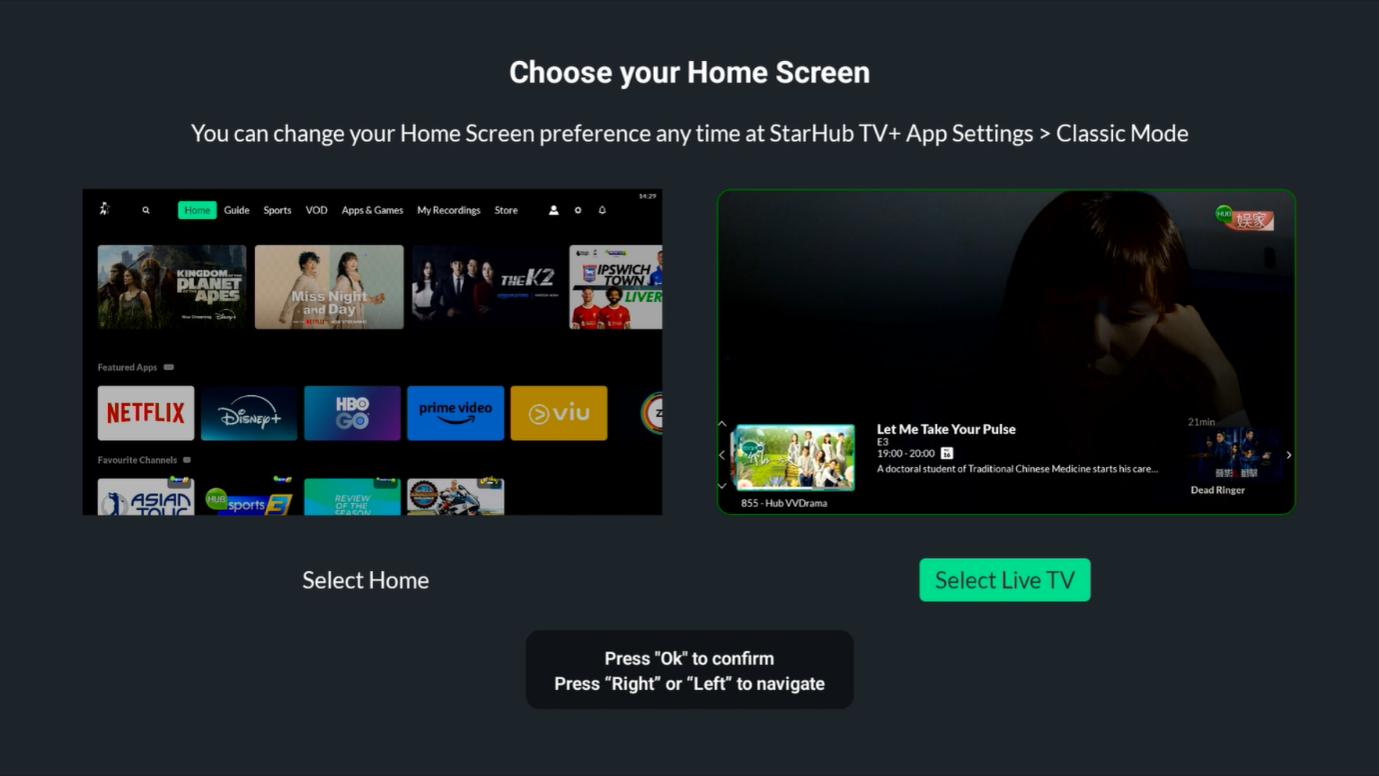
Subsequently, Classic Mode can be switched on or off through Settings > StarHub TV+ App > Classic Mode.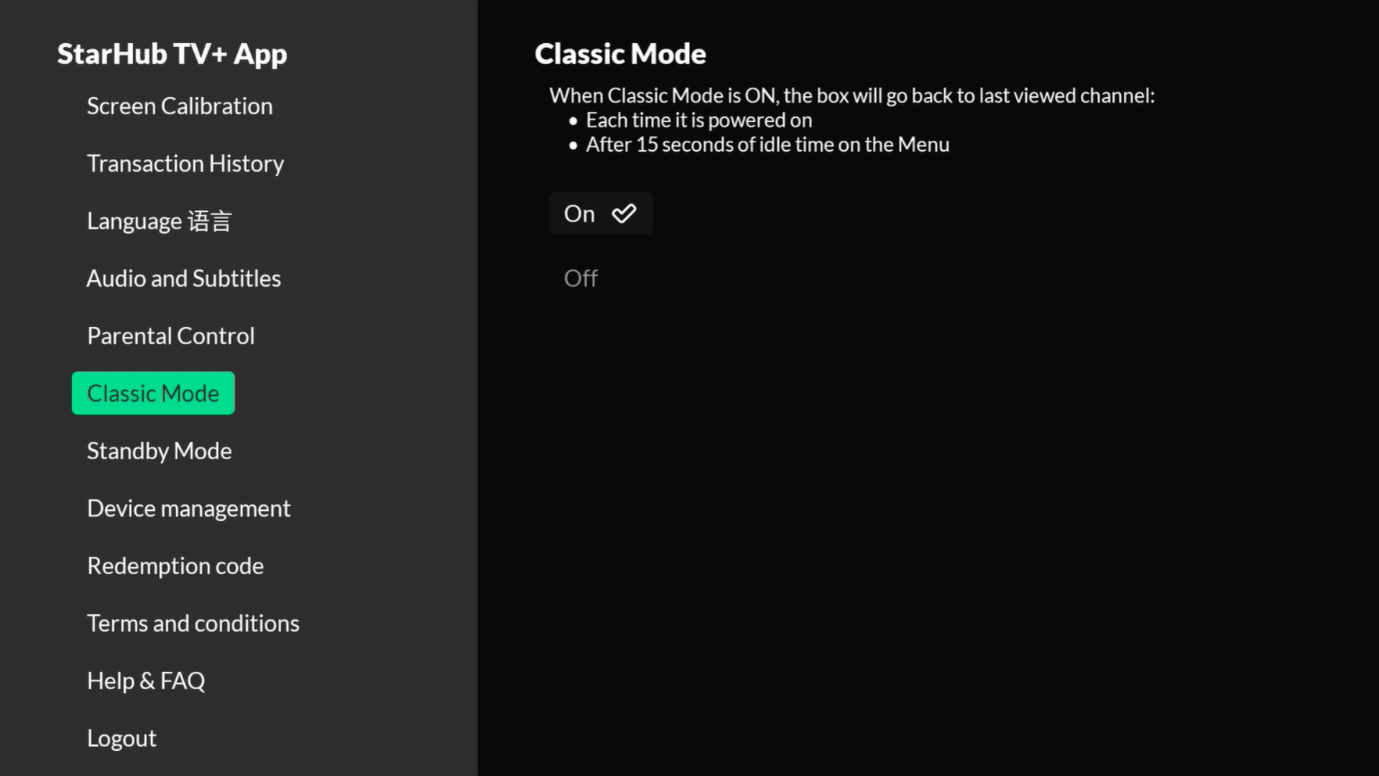
Google and Android TV Services
How do I navigate the new User Interface?
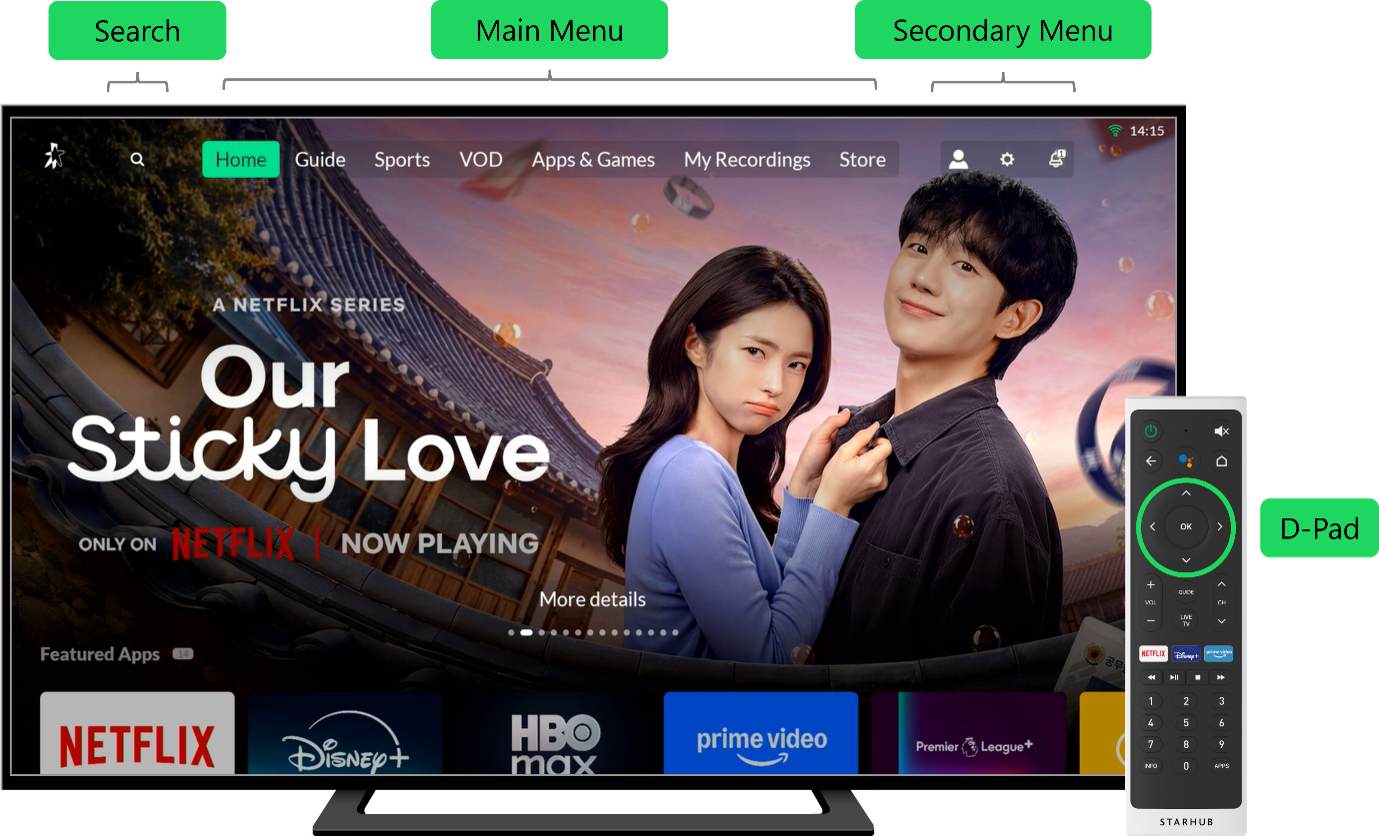
The User Interface can be navigated primarily using the D-Pad (Up/Down/Left/Right) on the remote control and the OK button for selection or confirmation.
The Main Menu is organized into the following main sections for easy navigation:
- Home
- Guide
- Sports
- VOD (Video On Demand)
- Apps & Games
- My Recordings
- Store
The Secondary Menu has 3 functions:

- Profile
- Setting
- System Notifications
How do I start to view Live TV channels?
Simply navigate to Guide on the Main Menu and select a channel to start viewing or press the Live TV button on the remote control. You may also use your remote control to enter the 3-digit channel number directly on the Home Screen or any part of the StarHub TV+ interface.
How do I start to view On Demand programmes?
Simply navigate to any genre rail on the Home Screen or VOD in the Main Menu to select a category or programme to start viewing.
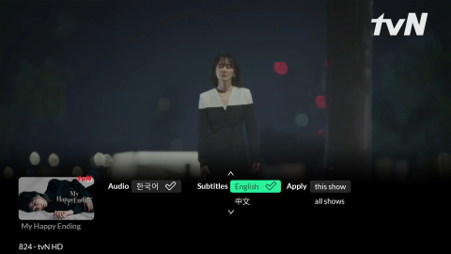
How do I toggle multi-language audio or subtitles?
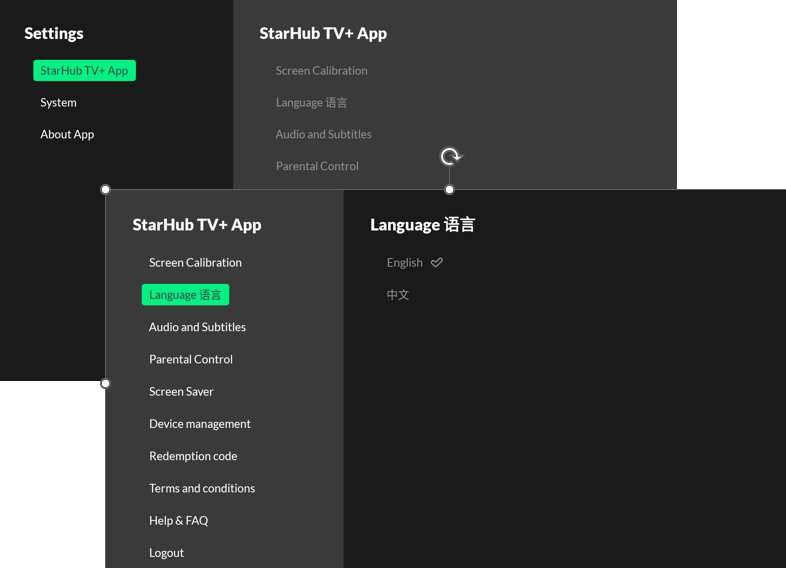
How do I change the language to Chinese?
Step 1: Settings (Gear icon) located at the top right corner of the screen and press OK.
Step 2: Select StarHub TV+ App and press Right and select Language and press "OK".
Step 3: Press the Down arrow and select 中文 and press "OK".
Why does my StarHub TV+ Box go to standby or screensaver mode while I’m watching a show?
If you are viewing the same Live TV channel for more than 5.5 hours in a single session, the StarHub TV+ Box will automatically go to standby or screensaver mode due to a power-saving feature. To resume viewing, you can press the “Power” button on your remote control to wake the TV+ Box from standby mode.
How do I search for TV Shows and Movies on the StarHub TV+ Box?

Select for the Search (Magnifying Glass) icon located at the top left corner of the screen and enter the title of the programme you want to watch using the on-screen keyboard.
How do I resume my last watched channel?
You can press the Live TV button on your remote control to tune to your last watched channel.
How do I resume my last watched programme(s)?
You can find your last watched programme(s) under the “Continue Watching” rail on the Home screen. Select the programme you wish to watch and click Resume.
How do I add a favourite channel?
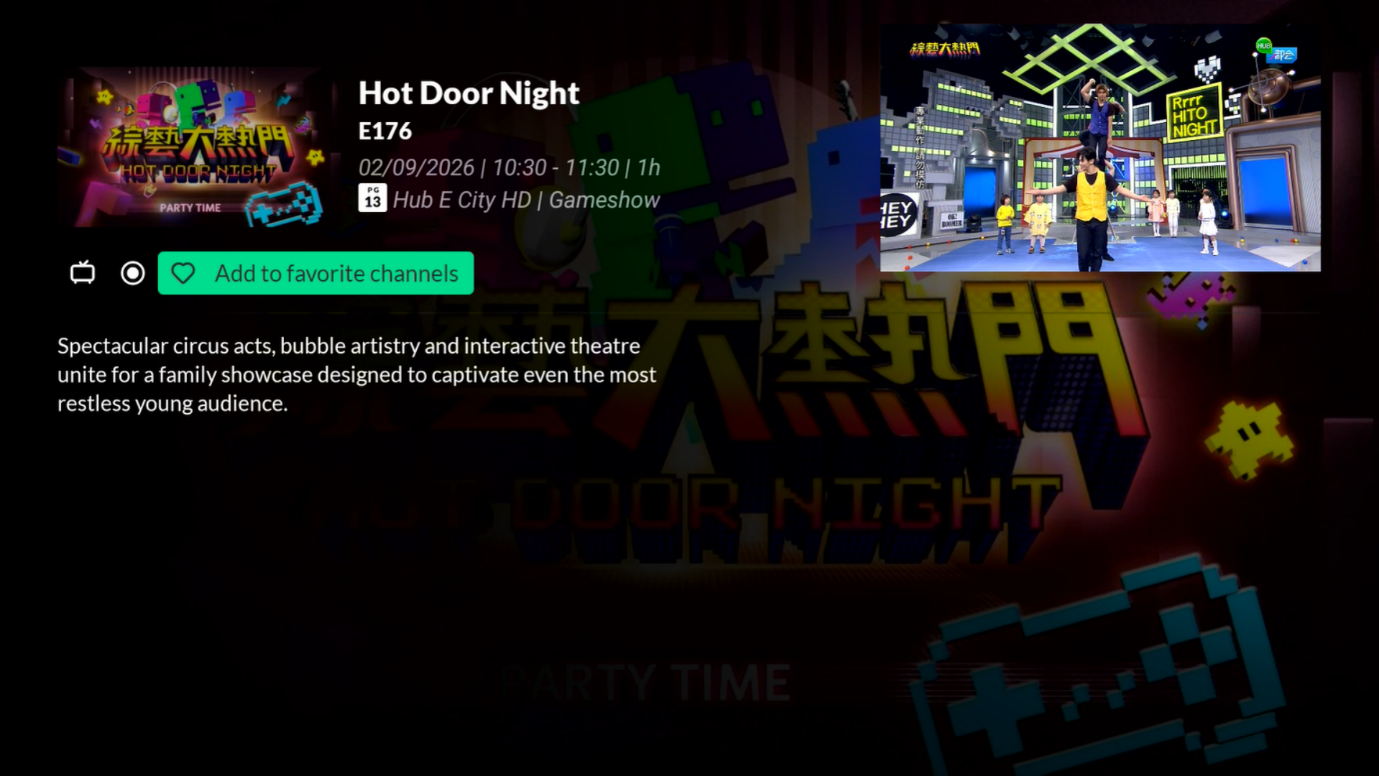
Step 1: Go to Guide and select the Live TV channel you wish to add.
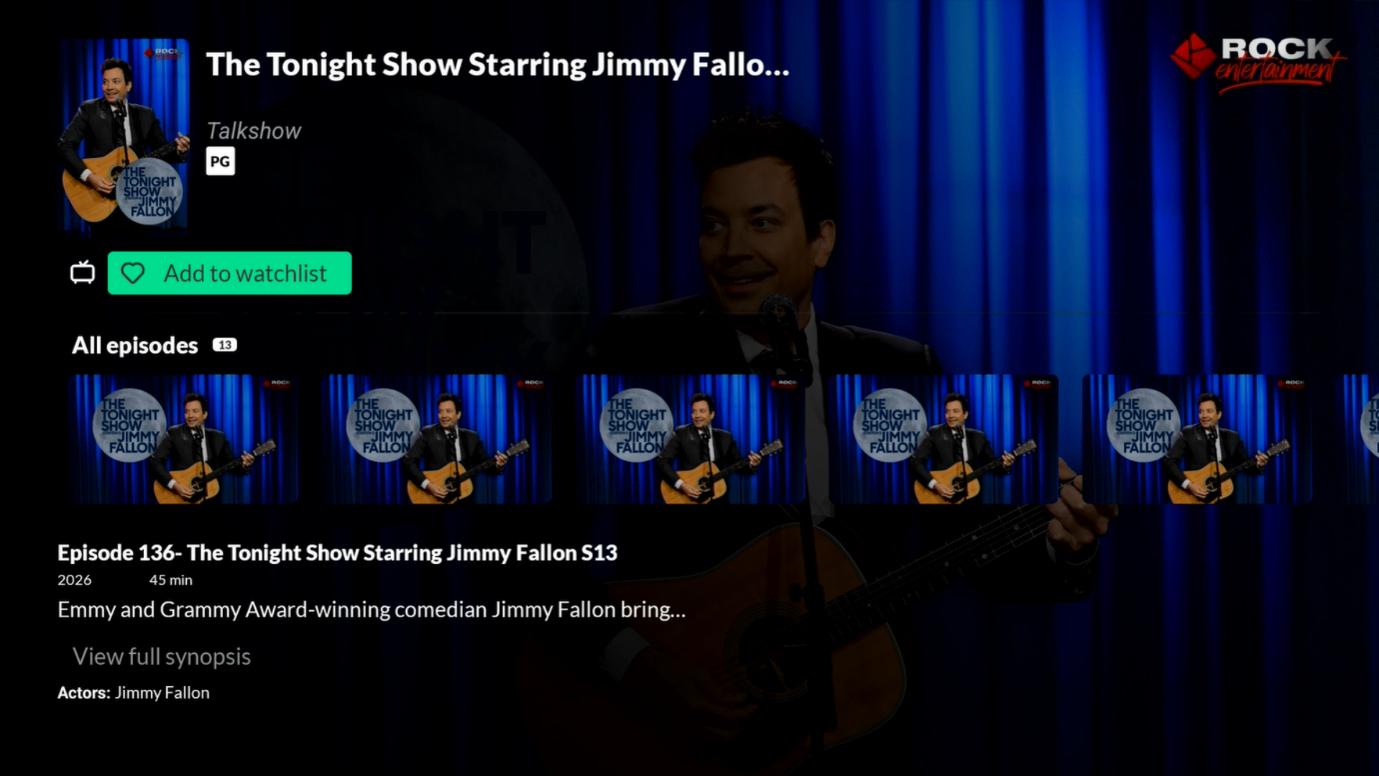
How do I add a TV Show or Movie to my Watchlist?
What is Time-Shift TV ?
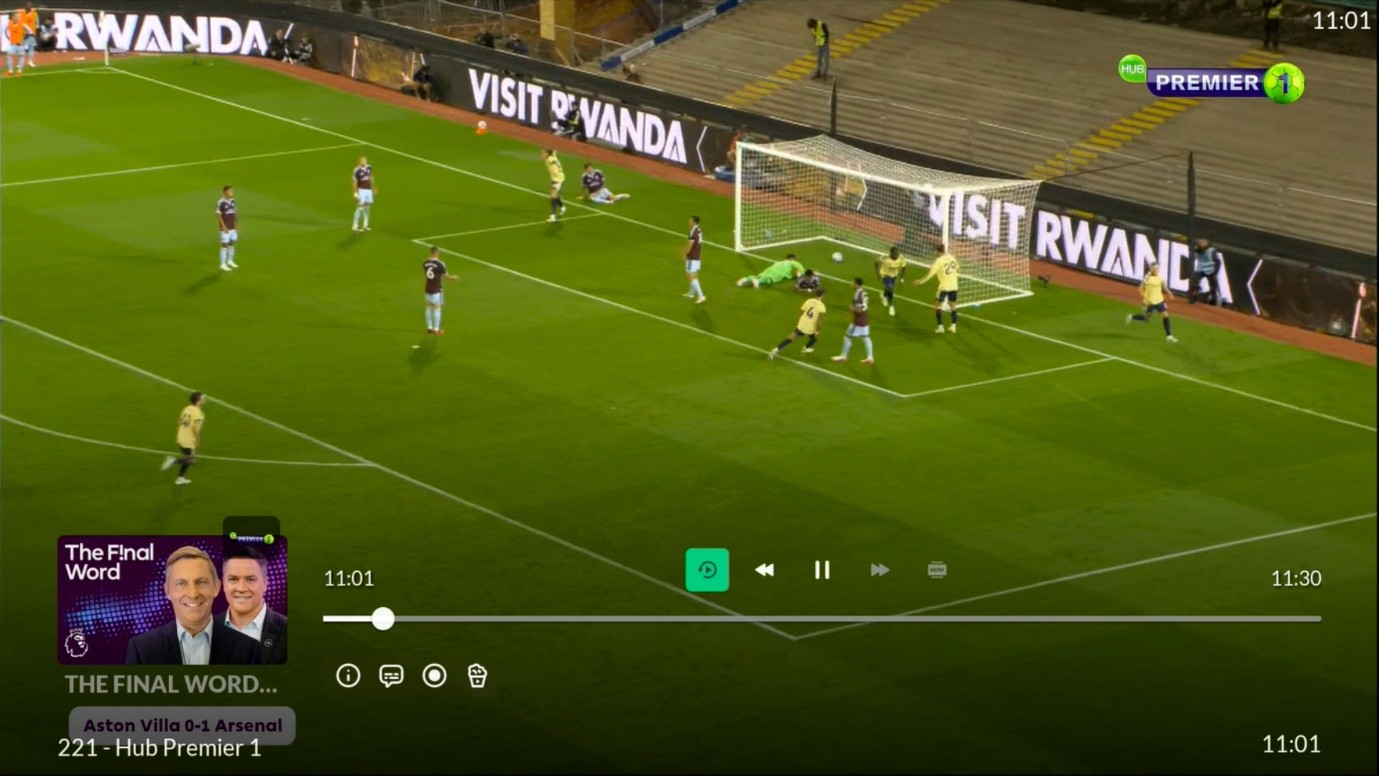
Instead of a recording function, the Time-Shift TV feature allows you to navigate through the TV Guide to watch programmes that have aired in the last 24 hours. If you have tuned in to a programme in the middle of its airing, you will also be able to “Start Over” from the beginning. It’s better than taking the trouble to personally record your shows!
Please note that Time-Shift TV is available only for selected channels. For the list of channels, please visit this link.
How do I use the Time-Shift TV feature?
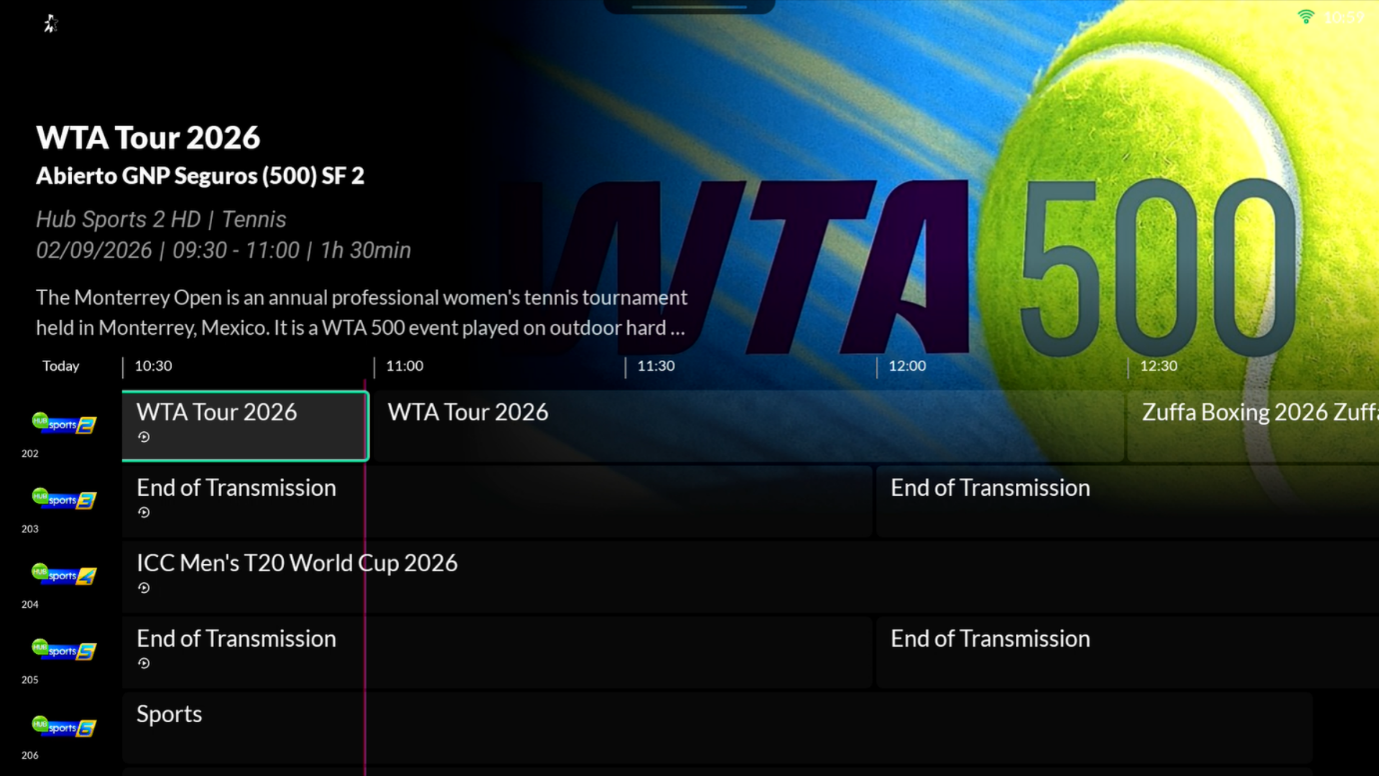
- Step 1: Go to Guide and select a Time-Shift TV channel. Time-Shift TV channels are denoted with the
 icon.
icon. - Step 2: Press the Left arrow button to scroll through the programmes that have aired within the past 24 hours.
- Step 3: Press OK to view the Time-Shift programme. You can rewind or fast-forward to any point within the programme like an On Demand TV Show or Movie.
How do I use the Start Over feature?
 icon.
icon.What does the “Crown” icon mean on StarHub TV+?
The “Crown” icon  denotes a channel or content that you are not subscribed to at the moment. If you wish to watch the channel or content, simply press OK to subscribe.
Can I download content for viewing later?
No, the StarHub TV+ Box does not support offline viewing.
What Parental Controls are available on the StarHub TV+ Box?
You can enable the following Parental Controls with a Parental PIN:
- Restrict Purchases (under Content Rating)
- Restrict Viewing by Content Rating
- Restrict Viewing by Channel
How do I access VOD Movies For Rental on the StarHub TV+ Box?
Step 1: To access Movies for Rental services, click on the VOD tab on the home screen and go to Movies. Search for “VOD Movies (For Rental)” to select a wide variety of content, ranging from movies to ethnic shows and Asian drama series.
Step 2: To rent a movie, select the Rent button and press OK to purchase.. The programme will play immediately once the transaction is successful.
How do I enable Classic Mode?
You can select between a Home screen experience or a Live TV experience (Classic Mode) when you set up your StarHub TV+ Box for the first time.
Subsequently, Classic Mode can be switched on or off through Settings > StarHub TV+ App > Classic Mode.
What is the “Playlist Channel” feature about?
The Playlist Channel provides previews of popular movies and series from streaming apps such as Disney+ and Amazon Prime Video.
Access the playlist channel through Guide or Input channel number.
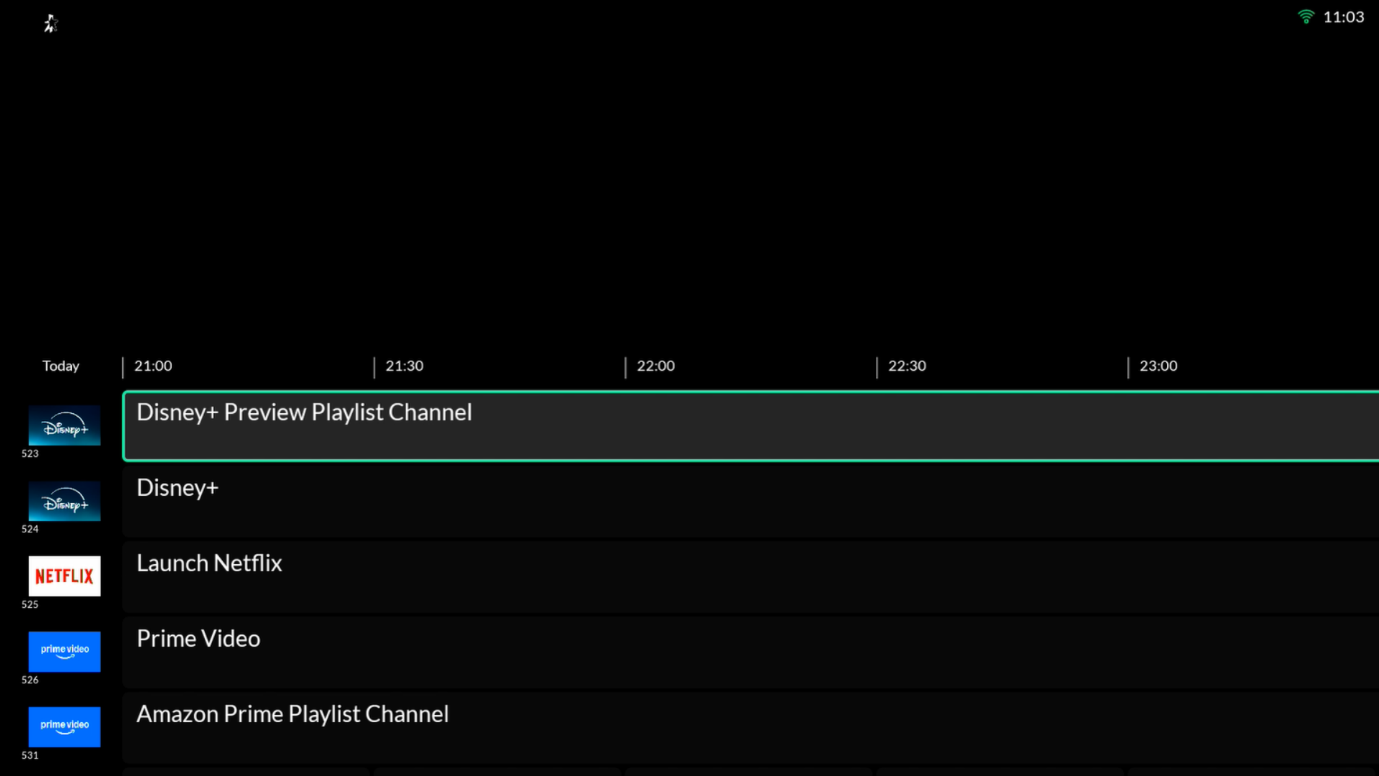
You can use the D-Pad Navigation (Left & Right button) on your remote to trigger Mini EPG.
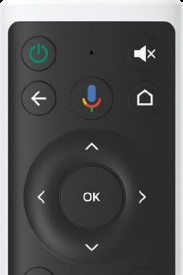
Then you can use the D-Pad Navigation (Left & Right button) on your remote to select the programme and press OK to watch.

How do I pair my Bluetooth earbuds or headset with my StarHub TV+ Box?
To pair your Bluetooth audio device with the TV+ Box:
- Go to Settings > System > More Settings > Remotes & Accessories > Add accessory.
- The screen will show “Searching for accessories”.
- Before pairing, make sure your Bluetooth device is in pairing mode.
- When your device appears on the list, select it.
- The setup will complete automatically.
Google and Android TV Services
How do I download apps from the Google Play Store?
Step 1: Go to Apps & Games and launch the Google Play Store app.
Step 2: You can search or browse for apps or games to download.
You will need to login with your Google account to download apps from the Google Play Store. Please note that StarHub does not ensure third-party app compatibility with the StarHub TV+ Box.
How do I use the Google Voice Search?
You can simply press the Google Voice Search button (Mic Icon) once and speak to the microphone (which is located above the Google Voice Search button) on the remote control.
Examples of what you can ask:
- Video clips: Play cat videos
- Apps: Open YouTube
- Search: Search for sitcoms
- Info: Tell me about Game of Thrones
Do note that you will need to login with your Google account to enable certain functionalities. For more information, you may refer to: https://support.google.com/assistant/?hl=en
How do I use the Chromecast function?
To use the Chromecast function, the app on your mobile device, tablet or computer will need to be Chromecast-enabled.
For more information, you may refer to: https://support.google.com/androidtv/answer/9397760?hl=en&ref_topic=6121131
How do I use the Screen Casting function?
You may refer to this article on the steps to cast your screen from your Android device: https://support.google.com/chromecast/answer/6059461?hl=en-SG
The Screen Casting function is only supported on Android devices running Android 8.0 or higher. Note that some devices may not be optimized for screen casting.
Why are there unfamiliar apps installed on my StarHub TV+ Box when I didn’t download them?
StarHub works with selected third parties to include certain apps for system health monitoring and performance tracking. Rest assured that other than the preloaded apps approved by StarHub, the StarHub TV+ Box only allows the installation of apps from the Google Play Store authorised by you.
Why are the microphone and camera permissions enabled by default on my StarHub TV+ Box?
Both microphone and camera permissions are enabled by default on the StarHub TV+ Box as part of the Android TV operating system requirements. The microphone allows you to use the Google Assistant feature on your remote control and is only active when you press the button. The TV+ Box does not have a camera, and StarHub has no access to any user images accordingly. However the permision is enabled to faciliate your easy setup, should you wish to connect a webcam to the StarHub TV+ Box at your end.
Managing Your Subscriptions
How do I subscribe to additional TV+ Passes or Add-On Channels/Packs/Apps?
How do I manage or modify my current StarHub TV+ subscription?
Software Updates
How do I check and ensure my StarHub TV+ Box is updated?
For Android TV Version 12:
Go to Android TV Settings > Device Preferences > About > System update > Check for update. You will be notified to install the new software update when it is made available.
Troubleshooting Guide
My StarHub TV+ Box is not working or responding. What should I do next?
1. Please reboot your StarHub TV+ Box by powering off and on the power supply to try again.
2. Ensure that you are running on the latest software version. If the issue persists, you may visit our StarHub Shops for an 1-1 exchange.
3. If your StarHub TV+ Box is exhibiting other symptoms, you can refer to the other help articles in this section.
For further assistance, chat with us on Facebook or WhatsApp.
I am encountering a black screen on my TV. What should I do next?
Please ensure that the HDMI source on your TV is selected correctly and your StarHub TV+ Box is powered on. Try to disconnect the HDMI cable and reconnect to try again. If the issue persists, try to connect using another HDMI cable to determine if it is a faulty cable issue or attempt to switch to another HDMI port on your TV set.
If your TV supports HDMI-CEC, you may need to disable this function in your TV settings. Please refer to your TV manufacturer guide on how to disable HDMI-CEC in your TV settings.
Note that HDMI-CEC is marketed as the following:
- Samsung – AnyNet+
- LG – Simplink
- Sony (Android TV) – Bravia Sync
If the issue persists, you may visit our StarHub Shops for an 1-1 exchange.
I am encountering [Error Message/Code]. What should I do next?
| Area of Concern | Suggested Checks/Resolution |
|---|---|
Error 815/ Error 817 | For TV+ Box users: Follow these simple steps: 1. Power OFF and ON the TV+ set-top box from the main power supply. 2. Navigate to Settings (gear icon). 3. Select System and Select More Settings
1. Switch on your TV+ set-top box and navigate to Settings (gear icon). |
| For the best viewing experience, please use Google Chrome. |
NAV-501A-UFI | Update your launcher to the latest version . Please see below for the step-by-step guide. |
PLA/PLB- 212A/1352G-NAG/ 6007 | De-link one of the devices logged in on your account. Remove any of the linked devices with the following steps: • Log in to the StarHub TV+ app. • Go to "More" on StarHub TV+ app. • Select "Gear icon" on the top right hand corner and select "Device Management" and remove your desired device. • Once successfully removed, simply log in with your new device and our system will link it automatically. |
NAV-800/ PLA/PLB-501-NAG/ PLA/PLB-1A-NAG/ PLA/PLB-1D-NAG/ PLA/PLB-1361-NAG/ PLA/PLB 010 | Step 1: Please check your internet connection. Step 2: TV+ Set-top Box users: Switch your ONT/ONR, Router and the TV+ set-top box. In the same sequence, turn on one by one in the order of 2-minutes interval to retry. For the optimal viewing experience, make sure your TV+ app or set-top box is updated to the latest version and connect to high-speed internet (at least 10Mbps) when streaming. StarHub Broadband is optimized for our StarHub TV+ set-top box. It can carry TV signals with the best quality of service regardless of network load and traffic. With StarHub Broadband and TV+, you’ll have a better way to view Premier League matches. If you’re not subscribed to StarHub Broadband yet, check out our promotions with Premier League at starhub.com/premierleague |
PLB-315 / NAV501-UFI | Please disable your VPN. StarHub TV+ is only supported in Singapore. |
Difficulties in streaming 4K matches on Ch 232. | To enjoy an optimal viewing experience for 4K matches on Ch 232, we recommend the following:
|
4K Channel (Ch 232) appears to have a darker colour profile. | To enjoy an optimal viewing experience for 4K matches on Ch 232, we recommend the following: • A 4K TV that supports Ultra HD resolution, High Dynamic Range (HDR), and high refresh rate and response time. • On your TV settings, ensure the High Dynamic Range (HDR) setting is selected. • Ensure "4K" is selected for the resolution on your TV+ box. |
My TV has an intermittent black screen when connected to the TV+ set-top box. | Please try any of the following:
|
Non-optimal video quality on TV+ set-top box. | 1. Reboot your router/mesh routers.
|
Non-optimal video quality on devices such as: | Reboot your router/mesh routers. |
My StarHub TV+ Box is stuck at the loading screen after powering up. What should I do next?
If your StarHub TV+ Box is connected via Ethernet:
- Step 1: Check that your physical cable connection is tightly secured.
- Step 2: Go to Android TV Settings > Network & Internet and check the Ethernet status.
- Step 3: Go to Android TV Settings > Apps > StarHub TV+ and select Force Stop and then select Open.
- Step 4: The interface should reload.
- Step 1: Go to Android TV Settings > Network & Internet and check the Wi-Fi status.
- Step 2: Toggle Off and On the Wi-Fi connection to reconnect.
- Step 3: Select Restart and press OK. The interface should reload.
I am having audio issues with my StarHub TV+ Box. What should I do?
Here are some things you can do if you're experiencing audio issues:
- Check if the TV is muted using your TV and StarHub remote control.
- Switch off your devices (TV, TV+ box, router, ONT) and ensure all cables are properly connected before switching them on again in this order: ONT, router, TV+ box, TV. Also, please use the HDMI cable to connect the TV+ box to the TV.
- If you're using a soundbar or another external audio equipment, pair it with the TV+ box instead of the TV.
I have issues using the Remote Control. What should I do next?
Try to remove and re-insert the batteries and try again. If the low battery indicator is lit, replace your batteries. If the issue persists, try to unpair your remote control by going to Android TV Settings > Remotes & Accessories > StarHub Remote Control > Unpair and re-pair to try again.
If the issue persists, you may visit our StarHub Shops for an 1-1 exchange.
How do I re-pair the Remote Control to the StarHub TV+ Box?
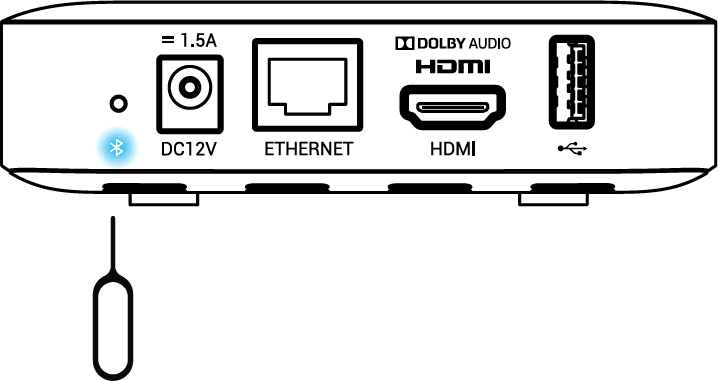
To re-initiate pairing, use a pin to press the Bluetooth button on the back of the StarHub TV+ Box. Follow the on-screen instructions to pair your remote control again.
I am experiencing poor Wi-Fi connection on my StarHub TV+ Box. What should I do?
- Step 1: Go to My Account > STB Information > Network status.
- Step 2: Check that Signal strength should be Good and Frequency should be 5GHz.
- Step 3: Check that RSSI value should be -60dBm or lower.
- Step 4: If the connected Frequency is 2.4GHz, please reboot your router and StarHub TV+ Box.
For the best Wi-Fi performance, use the 5GHz band on your wireless router if supported. Also, do not place the StarHub TV+ Box in a cabinet as it may impact Wi-Fi signal strength.
If you continue to encounter Wi-Fi network issues, ensure that your Internet connection is working properly or try to reboot your modem/optical network terminal and router. A wired connection using the Ethernet cable is recommended in this case.
Why is my voice not registering when I am using the Google Voice Search?
Please check and ensure that the volume is not “mute” when you are speaking to the Google Voice Search.
Does Google Voice Search support Singlish or other languages other than English?
Why is the app I downloaded from Google Play Store not working?
Device Support
My StarHub TV+ Box is not working out-of-the-box. What should I do?
If your StarHub TV+ Box is not working out-of-the-box within the first 14 days, you may contact our HubCare for an 1-1 replacement via delivery to your home address.
Alternatively, you may visit any one of the following StarHub Shops:
- Jurong Point
- Nex
- Paragon
- Tampines Mall
My StarHub TV+ Box or Remote Control is faulty. Where can I do a 1-1 exchange?
You may visit any one of the following StarHub Shops:
- Jurong Point
- Nex
- Paragon
- Tampines Mall
If your StarHub TV+ Box is faulty, please remember to bring along the following:
- StarHub TV+ Box
- Remote Control
- Power Adapter
- HDMI Cable
- Ethernet Cable
If your remote control is faulty, you will only need to bring along the remote control.
