
Important Update: TV+ Set-Top Box or TV+ Pro Software Update FAQ
What software versions should my TV+ set-top box or TV+ Pro be running and how do I check the versions?
For TV+ Set-Top Box
Please ensure that your TV+ set-top box is updated to the following version:
- App Version: 4.619.311
To check the TV+ app version:
- Switch on your TV+ set-top box, navigate to Settings.
- Select About App
For TV+ Pro
Please ensure that your StarHub TV+ Pro box is updated to the following firmware version:
App Version : 16.1.16
To check the TV+ app version:
- Switch on your StarHub TV + Pro, navigate to Settings.
- Select System > More Settings > Device Preferences > About
- Check that the Android TV OS build is showing UTT1.260505.001.16.1.16
How do I update my TV+ set-top box?
Follow these simple steps:
- Power OFF and ON the TV+ set-top box from the main power supply.
- Navigate to Settings (gear icon).
- Select System and Select More Settings.
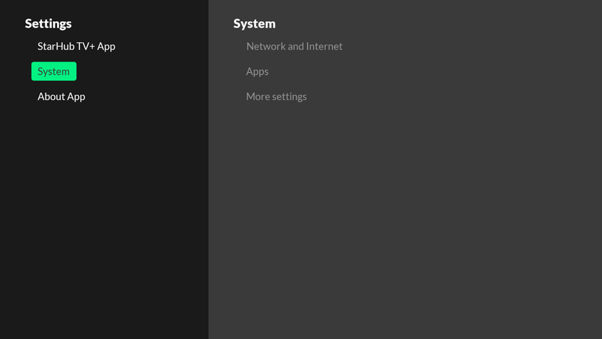
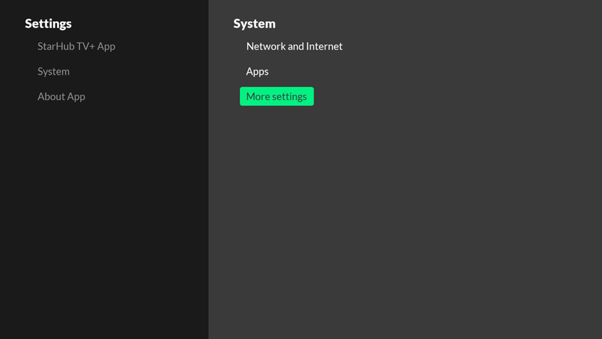
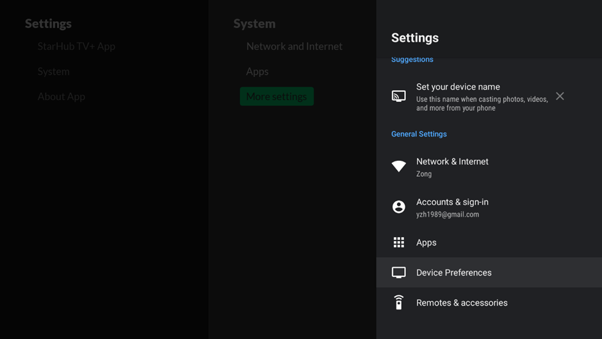
4.Select Device Preferences and select About
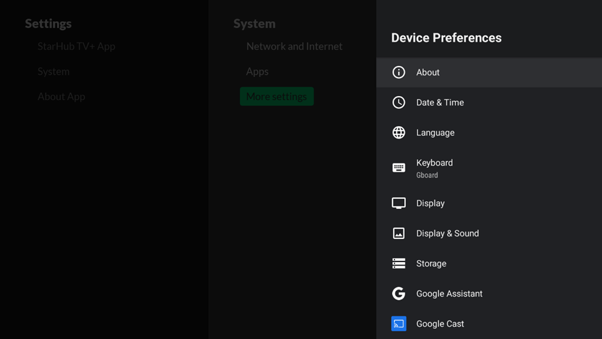
5. Select System Update followed by Check for update
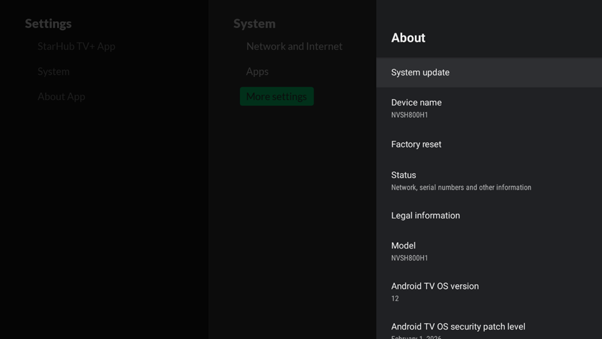
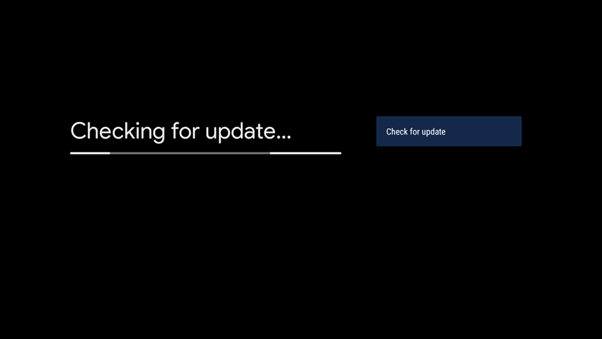
6. Follow the on-screen instructions to complete the update process.
How do I update my TV+ Pro?
Follow these simple steps:
1. Power OFF and ON the TV+ Pro from the main power supply.
2. Navigate to Settings (gear icon).
3. Select System > More Settings.
4. Select Device Preferences > About.
5. Select System Update > Check for update.
6. Follow the on-screen instructions to complete the update process.
What should I do if the update is unsuccessful?
If the update fails to complete, your set-top box may not have enough free storage space. Try the following steps to clear space and retry.
1. Uninstall any unused or unwanted apps from your set-top box to free up space.
2. Go back to Settings > System > More Settings > Device Preferences > About > System Update > Check for update.
3. Retry the software update.
What should I do if the firmware upgrade still fails?
If the update continues to fail after freeing up storage space, perform a Factory Reset on your TV+ set-top box.
Important Warning: Performing a factory reset will permanently erase all internal storage, including your Google Account, downloaded apps, and custom set-top box settings.
Before you begin: Ensure you have your Hub iD and password, as you will need to log back in once the process is complete.
How to perform a Factory Reset:
1. Switch on your TV+ set-top box and navigate to Settings (gear icon).
2. Select System > More Settings.
3. Select Device Preferences > About.
4. Select Factory Reset and confirm your selection.
After the Reset:
Once the factory reset completes and your set-top box restarts, you will need to:
- Re-pair your remote control by following the on-screen prompts.
- Reconnect to your Wi-Fi network (this step is skipped automatically if you are using a wired Ethernet connection).
- Sign back in using your Hub iD and password.
How do I verify that my update was successful?
After the update finishes, you can check your device's current software version under your set-top box Settings menu.
For TV+ Set-Top Box
Confirm that your device displays: App Version: 4.619.311.
For TV+ Pro
Android TV OS build is showing UTT1.260505.001.16.1.16
What happens if I do not update my TV+ set-top box?
If you do not update your TV+ set-top box by 31 July 2026, you will not be able to stream your StarHub TV+ content until your software is updated to the required version (4.619.311).
Where can I get help if I am unable to update my set-top box?
If you continue to experience issues after attempting the troubleshooting steps above, you may visit our StarHub Shops for an 1-1 exchange.
General
I am unable to watch Premier League matches via StarHub TV+ app even though I had already subscribed to Premier+. What should I do?
Please log out and log in again with your Hub iD on your TV+ app. If the issue persists, you can reinstall the StarHub TV+ app.
To log out:
- For mobile app users: Select "More" located on the bottom right, then select "Log off", and log in again with your Hub iD.
- For Smart TV app users: Select settings (gear icon) on the top, then select StarHub TV+ App followed by "Logout", and log in again with your Hub iD.
An error code popped up on my screen while watching on Premier League on TV+. What should I do?
| Area of Concern | Suggested Checks/Resolution |
| Error 815/ Error 817 | For TV+ Box users: 1. Power OFF and ON the TV+ set-top box from the main power supply. If the update fails to complete, your set-top box may not have enough free storage space. Try the following steps to clear space and retry. 1. Uninstall any unused or unwanted apps from your set-top box to free up space.
1. Switch on your TV+ set-top box and navigate to Settings (gear icon).
• Re-pair your remote control by following the on-screen prompts. For iOS mobile app user: For Android mobile app user: |
| Error 3016 | For the best viewing experience, please use Google Chrome. |
NAV-501A-UFI | Update your launcher to the latest version. Please see below for the step-by-step guide. |
PLA/PLB- 212A/1352G-NAG/ 6007 (You have exceeded the max number of concurrent streams allowed. Please close one of your streaming sessions and try again.) | De-link one of the devices logged in on your account. Remove any of the linked devices with the following steps:
|
NAV-800/ PLA/PLB-501-NAG/ PLA/PLB-1A-NAG/ PLA/PLB-1D-NAG/ PLA/PLB-1361-NAG/ PLA/PLB 010 | Step 1: Please check your internet connection. Step 2: TV+ Set-top Box users: Switch your ONT/ONR, Router and the TV+ set-top box. In the same sequence, turn on one by one in the order of 2-minutes interval to retry. |
PLB-315 / NAV501-UFI "An error has occurred while trying to stream the video" Please exit the player and try again. | Please disable your VPN. StarHub TV+ is only supported in Singapore. |
New Android/iOS Mobile app auto log out of the app. | Update your TV+ app to the latest version and log in again. |
Difficulties in streaming 4K matches on Ch 232. | To enjoy an optimal viewing experience for 4K matches on Ch 232, we recommend the following:
Do note that most smartphones, tablets, laptops and computer monitors are not able to decode and display Ultra HD 4K videos natively.
|
4K Channel (Ch 232) appears to have a darker colour profile. | To enjoy an optimal viewing experience for 4K matches on Ch 232, we recommend the following:
|
My TV has an intermittent black screen when connected to the TV+ set-top box. | Please try any of the following:
|
Non-optimal video quality on TV+ set-top box. |
|
Non-optimal video quality on devices such as:
| Reboot your router/mesh routers.
|
How can I identify which of my TV Subscription ID has the Premier League subscription if I have multiple subscriptions?
Log in to StarHub app with your Hub iD, select TV, and then check your TV plans to locate the plan with Premier+/Premier Pack. The corresponding Subscription ID will be reflected within.
I have forgotten my Hub iD or Hub iD password. How do I reset my password on StarHub TV+ app/web?
If you forgot your Hub iD or password, you could reset them here. Just tap “Forgot your Hub iD” or “Forgot your Password” and follow the steps.
What is the recommended TV+ setup for the best streaming experience?
For the optimal viewing experience, make sure your TV+ app or set-top box is updated to the latest version and connect to high-speed internet (at least 10Mbps) when streaming.
StarHub Broadband is optimized for our StarHub TV+ set-top box. It can carry TV signals with the best quality of service regardless of network load and traffic. With StarHub Broadband and TV+, you’ll have a better way to view Premier League matches.
If you’re not subscribed to StarHub Broadband yet, check out our promotions with Premier League at starhub.com/premierleague.
How do I update my TV+ App on my StarHub TV+ Box, StarHub TV+ Pro or Android TV to the latest version?
For the best viewing experience, ensure your TV+ App on your StarHub TV+ Pro or your Android TV is on the latest version!
For StarHub TV+ Pro or Android TV
Ensure you are signed in with your Google account and check that your TV+ app is updated to the latest version via the Google Play Store.
For StarHub TV+ Box
Your TV+ app on your StarHub TV+ Box will be automatically updated to the latest version upon launching. No action is required from you.
What is the latest StarHub TV+ version?
Here's the latest StarHub TV+ version for every viewing device, with steps for you to follow and ensure you are ready for the new season!
| Viewing Device | Software Type | Latest Version | How to Check |
Android Mobile and/or Tablet | StarHub TV+ App | 6.472.874 or later |
Or
|
iPhone and/or iPad | StarHub TV+ App | 6.472.834 or later |
Or
|
StarHub TV+ Box | Firmware | 12.12.2 or later | 1. Go to Android TV Settings (Gear Icon). |
StarHub TV+ App | v4.619.319 or later | 1. Go to My Account (Profile Icon). | |
StarHub TV+ Pro | Firmware | 16.1.16 or later | 1. Go to Settings (Gear Icon). |
StarHub TV+ App | v4.619.319 or later | 1. Launch Google Play from Apps and Games. | |
Smart TV | StarHub TV+ App | v4.619.319 or later | 1. Launch Google Play and search for StarHub TV+ app. |
Smart TV | StarHub TV+ App | 6.10.5 or later | 1. Go to "Home". |
