
Tips for Better Wi-Fi Performance
Router placement and repositioning tips.
1.1. Try to place your router in the center of your home.
Check your applications, company VPN and special applications for work.
2.1. Close unused applications consuming data while running in the background
Change connection for some of the devices from 2.4GHz SID to 5GHz SSID.
Modern routers and mesh routers are having 2 SSIDs – usually you can see your Wi-Fi network name twice, one is ending with 2.4GHz (e.g. My Home Wi-Fi Network_2.4GHz) and another ending with 5GHz (e.g. My Home Wi-Fi Network_5GHz).
Some devices (mobile, laptop, desktop) automatically register to 5GHz, some do not. It is worth a shot to try to change the connection from 2.4GHz SSID to 5GHz SSID for some of your devices.
In general, the interference (due to connected devices, neighbor devices, etc.) can be higher for 2.4GHz resulting in ~20-40Mbps download speed via Wi-Fi, while 5GHz is able to achieve above 100Mbps download speed via Wi-Fi.
Too many connected devices and bigger spaces within your home might be a challenge to your current router.
If you connect too many wireless devices to your router, your Wi-Fi connection might slow down as well. If you have issues with your Wi-Fi speed or have dead spots at home, you should consider changing to StarHub’s Smart Wi-Fi for a stronger Wi-Fi signal and better Wi-Fi coverage. You should also consider upgrading your broadband plan to a higher speed.
Reboot your router and ONT modem.
If the tips above don’t help with your Wi-Fi issue, as a very last resort, you can try to reboot your ONT modem and router with the following steps. This way, some settings can be reset and newly released firmware and software updates might be installed to make your Wi-Fi network work again.
Step 1: Unplug both your router and your modem (it should be your Optical Network Terminal) from the power outlet.
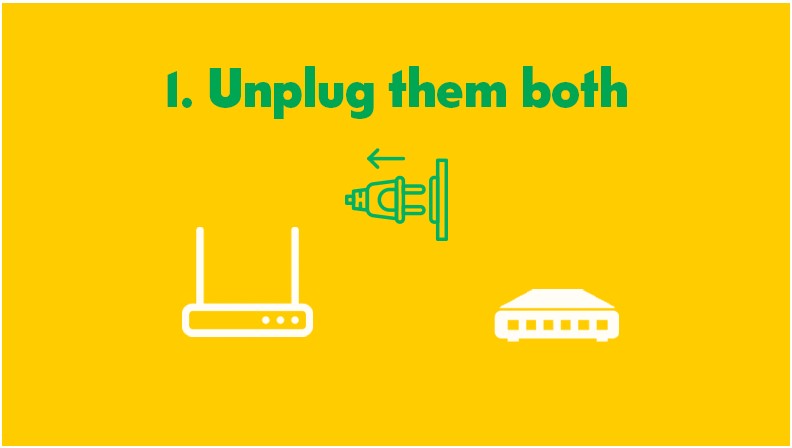
Step 2: Wait at least 30 seconds before you plug in only the modem and power it on.

Step 3: Now wait at least 60 seconds before doing the same for your router.
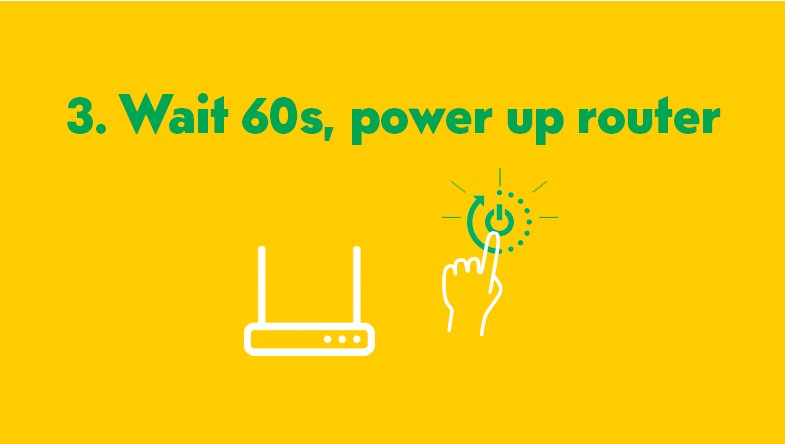
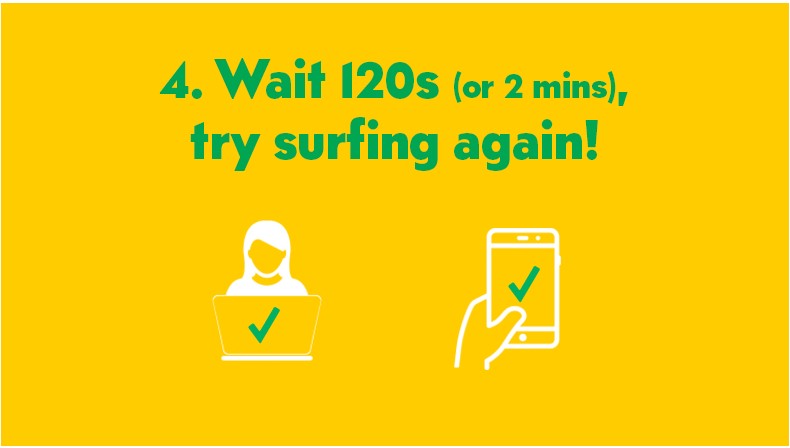
Step 4: Once your router’s on, wait at least 2-4 minutes (or simply check the router LED status to ensure your router is up) before you re-test your Wi-Fi connection with your phone, laptop or tablet.
How to Restore Your Wi-Fi Connection
Intermittent or no Wi-Fi connection at all.
1. I have intermittent or no Wi-Fi connection at all. What should I do?
1.1. Do you have additional Access Point/Bridge Mode Device, which is connected to your router?
No, I don’t have Access Point/Wi-Fi Bridge Mode Device connected to my router. Please see A1.1.1.
Yes, I have Access Point/Wi-Fi Bridge Mode Device connected to my router. Please see A1.1.2.
A1.1.1. You should try to reboot your router and ONT modem.
If your internet or Wi-Fi connection is down but it worked fine before, try to reboot your ONT modem and router with the following steps. This way, some settings can be reset and newly released firmware and software updates might be installed to make your Wi-Fi network work again.
Step 1: Unplug both your router and your modem (it should be your Optical Network Terminal) from the power outlet.
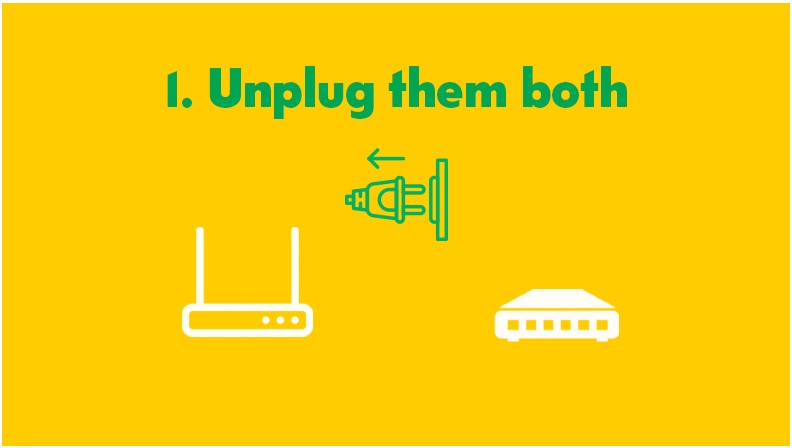
Step 2: Wait at least 30 seconds before you plug in only the modem and power it on.

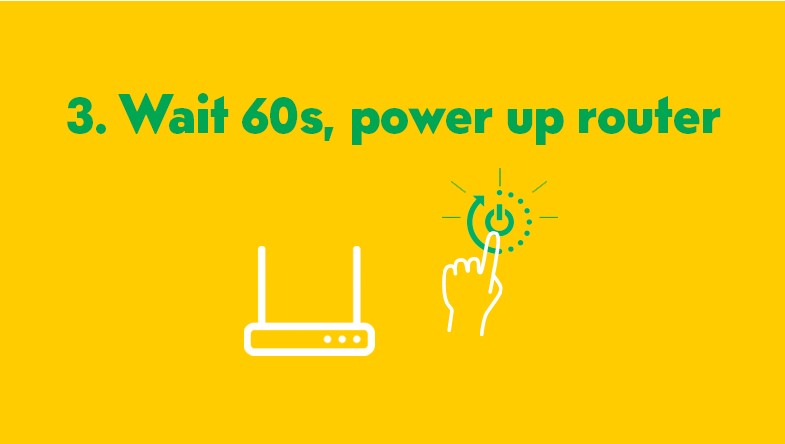
Step 3: Now wait at least 60 seconds before doing the same for your router.
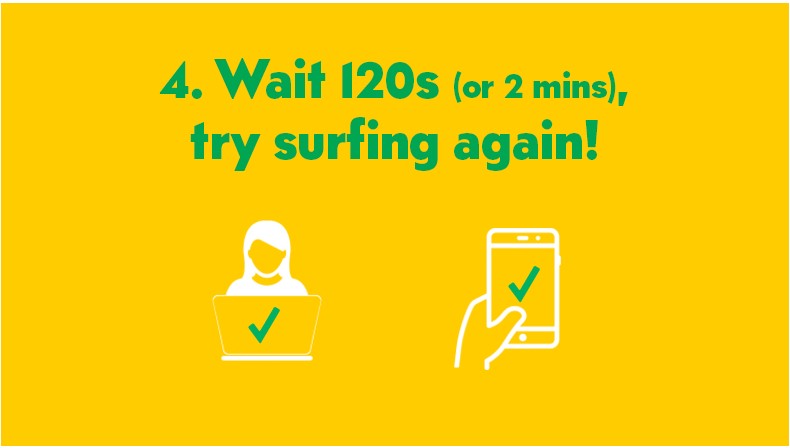
Step 4: Once your router’s on, wait at least 2-4 minutes (or simply check the router LED status to ensure your router is up) before you re-test your Wi-Fi connection with your phone, laptop or tablet.
A1.1.2. Multiple Wi-Fi devices are connected to additional Access Point, which may cause intermittent connectivity issues.
If you are using additional Access Point/Wi-Fi Bridge, Wi-Fi devices might be switching between your main router and your additional Access Point, which can cause intermittent or no Wi-Fi connection as there is no roaming mechanism between your router and additional Access Point/Wi-Fi Bridge.
We recommend you to stop using incompatible devices and call our Hotline on 1633 to support you in finding a better solution for your needs, like StarHub’s Smart Wi-Fi for stronger Wi-Fi signal, better Wi-Fi coverage and seamless handover between mesh nodes for a seamless connectivity experience.
Slow Wi-Fi connection.
- If you are experiencing slow Wi-Fi connection on all your devices (laptop, mobile, tablet), please click here.
- If you are experiencing slow Wi-Fi connection only on your laptop or company laptop, please click here.
- If you are experiencing slow Wi-Fi connection or weaker Wi-Fi signal in some parts of your home, please click here.
- If you are unable to access some websites, even if they are secured, please click here.
A. There are many factors that can affect the quality of your Wi-Fi connection and slow it down. Here are the things you should check to improve the speed and quality of your Wi-Fi connection:
- Router positioning might not be optimal
a. Try to place your router in the centre of your home and position it as high as possible to have better Wi-Fi coverage and a stronger Wi-Fi signal.
b. Eliminate obstacles which might weaken your Wi-Fi signal.
- Check your applications
a. Close unused applications that are consuming data while running in the background.
b. Try not to run so many data-heavy applications and online activities simultaneously.
- Change connection for some of the devices from 2.4GHz SSID to 5GHz SSID.
- Too many connected devices and bigger spaces within your home might be a challenge to your current router.
B. If you are using a VPN on your laptop, your VPN or any special application you use for work might be causing your experience.
With VPN, internet speed and web access are controlled by your company's VPN gateway performance and surfing policy.
If you are experiencing slow speed only on the laptop you use for work while all the other devices in the household are working fine, check your VPN or any other special applications you use for work by following these steps:
- Conduct a speed test via Speedtest by Ookla with VPN and note the test result. When using Speedtest by Ookla, don't forget to choose 'StarHub Mobile Pte Ltd' as the server. Connecting to other servers might result in misleading speed results and lower performance.
- After the speed test, disconnect the VPN and turn off any special application you use for work.
- Wait for a few minutes and conduct another speed test.
If you achieved better test results with the VPN disconnected or your company's special applications turned off, you should contact your IT department for further advice.
C. If you are experiencing a slower Wi-Fi connection or weaker Wi-Fi signal in some parts of your home, try these tips:
- Router positioning might not be optimal
a. Place your router in the centre of your home to have better Wi-Fi coverage and Wi-Fi signal.
b. Eliminate obstacles which might weaken your Wi-Fi signal.
- You can change to StarHub’s Smart Wi-Fi to eliminate dead spots at home and for a stronger Wi-Fi signal and better Wi-Fi coverage or upgrade your broadband plan to a higher speed.
D. If you are unable to access some secured websites, try these tips:
a. If you are using a VPN on your laptop, your VPN or any special application you use for work might be causing your experience. With VPN, internet speed and web access are controlled by your company's VPN gateway performance and surfing policy.
- Conduct a speed test via Speedtest by Ookla with VPN and note the test result. When using Speedtest by Ookla, don't forget to choose 'StarHub Mobile Pte Ltd' as the server. Connecting to other servers might result in misleading speed results and lower performance.
- After the speed test, disconnect the VPN and turn off any special application you use for work.
- Wait for a few minutes and conduct another speed test.
If you achieved better test results with the VPN disconnected or your company's special applications turned off, you should contact your IT department for further advice.
b. Reboot your router and ONT modem to reset some settings and install newly released firmware and software updates. Follow these steps:
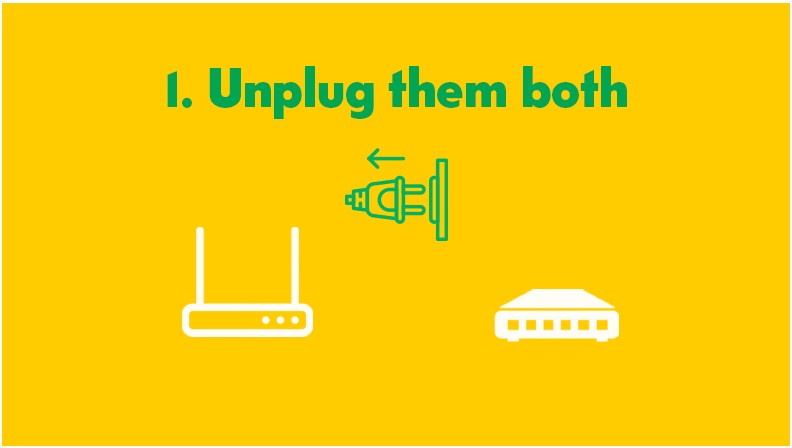
Step 1: Unplug your router and your Optical Network Terminal from the power outlet.
Step 2: Wait at least 30 seconds before you plug in the ONT modem and power it on.

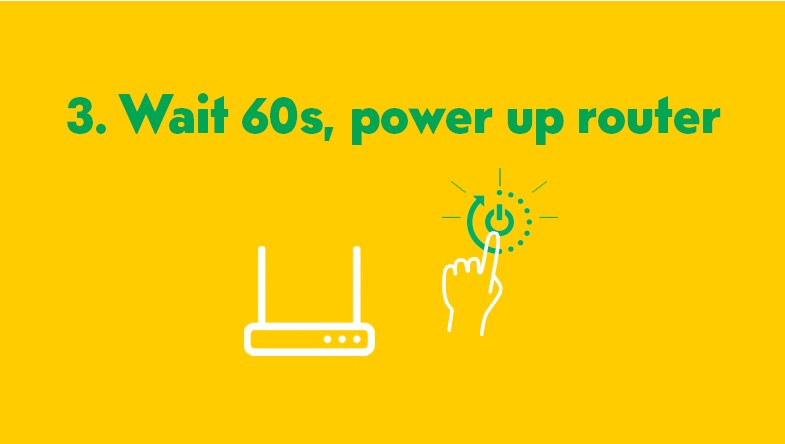
Step 3: Wait at least 60 seconds before you plug in the router and power it on.
Step 4: Once your router’s on, wait at least 2-4 minutes or simply check the router LED status to ensure your router is up. Then, test your Wi-Fi connection with your phone, laptop, or tablet.
Other troubleshooting tips.
For other troubleshooting tips, check out our Device Setup & Troubleshooting page here.
