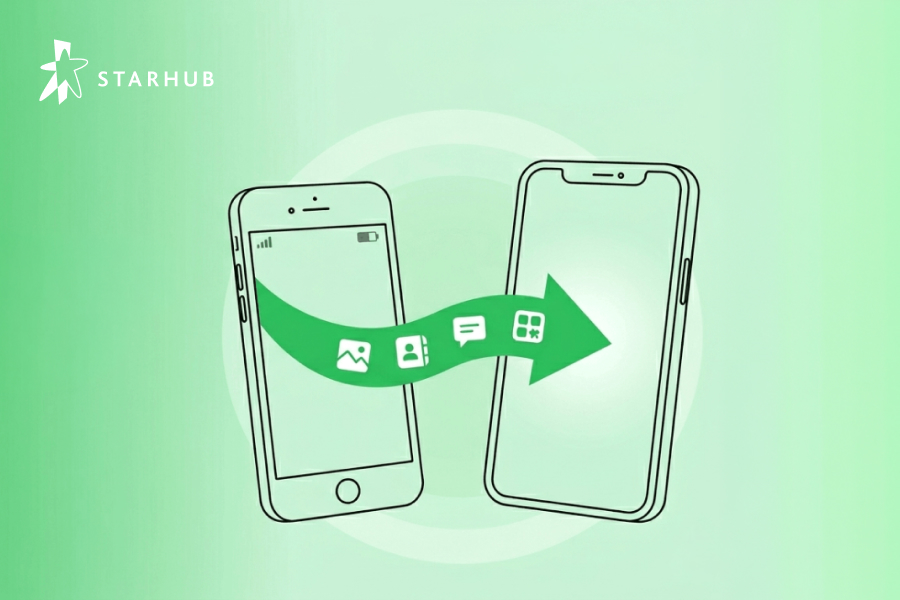
Getting a new phone should be exciting—not stressful. Yet for many users, the biggest worry isn’t the hardware upgrade, but how to transfer data safely without losing photos, messages, apps, or contacts.

This complete iPhone migration guide shows you exactly:

  • How to transfer iPhone to iPhone

  • How to transfer data from Android to iPhone

  • How to transfer WhatsApp messages from Android to iPhone

  • How to transfer photos from Android to iPhone

  • How to transfer iPhone to iPhone without iCloud

This article is significantly more detailed than standard Apple support guides, covering speed comparisons, troubleshooting, offline transfer options, and professional migration methods.

🔄 How to Transfer Data from iPhone to iPhone

Method 1: Quick Start (Fastest & Easiest Way)

Quick Start is Apple's fastest and most complete method, copying your apps, settings, messages, photos, and Apple ID data directly between your old and new iPhones. This method is used when you are setting up your new iPhone for the first time.

⭐ Best for - Full device-to-device migration; Users who want zero manual setup.


🔧 Step-by-Step Instructions

  1. Charge both phones to at least 50% and keep them plugged in. Turn on Wi-Fi and Bluetooth on your old iPhone.
  2. Turn on your new iPhone and place it beside your old iPhone.
  3. A Quick Start prompt will appear on your old iPhone. Tap Continue.
  4. Use your old iPhone to scan the swirling blue animation on the new device.
  5. Enter your old iPhone's passcode on the new device.
  6. When the Transfer Data screen appears, choose Transfer Directly from iPhone.
  7. Keep both phones close and plugged in until the transfer completion screen appears.


🧯 Common Problems & Fixes

Problem Fix
Quick Start doesn’t appear Restart both phones. Toggle Bluetooth off and on. Ensure both iPhones are running the latest iOS.
Transfer is stuck or too slow Ensure both devices are plugged into power. Reset Wi-Fi settings. Switch to a Wired Transfer (connect the two iPhones using a Lightning-to-USB-C cable or an adapter).

Method 2: Transfer Data Using iCloud Backup

Use iCloud Backup when you prefer a cloud-based restore, need a copy of your data off-device, or don't have your old phone physically near you.

⭐ Best For - Restoring from a distance; Users with slow internet speeds (apps download in background).


🔧 Step-by-Step Instructions

  1. Go to Settings > Your Name > iCloud > iCloud Backup > Back Up Now (wait for completion).

  2. Turn on your new iPhone and follow the setup prompts until you reach the Apps & Data screen.

  3. Choose Restore from iCloud Backup.

  4. Sign in with your Apple ID and password, and choose the most recent backup.

  5. Stay connected to Wi-Fi and power. Apps and media download in the background, allowing you to use your new phone sooner, but the full restoration can take hours.


🧯 Common Problems & Fixes

Problem Fix
No recent backup found On the old iPhone, ensure the backup completed successfully: Settings > Your Name > iCloud > iCloud Backup.
Restore interrupted or stuck Check Wi-Fi stability; switch networks if needed. Keep the new iPhone plugged into power.
iCloud storage full Manage storage on the old iPhone: Settings > Your Name > iCloud > Manage Storage. Delete old backups or upgrade your iCloud plan.
Apps not downloading after restore Give the phone time—apps download in the background. Check if the App Store is restricted (Screen Time settings).

Method 3: Transfer Without iCloud or Quick Start (Computer Backup)

If you cannot use Quick Start (e.g., one phone has a broken screen) or want to avoid iCloud, you can use a Computer Backup via Finder (Mac) or iTunes (PC). This is the best method for a complete transfer iphone to iphone without icloud.


🔧 Step-by-Step Instructions

  1. Connect your old iPhone to your computer. Open Finder (Mac) or iTunes (PC), select your iPhone, and click Back Up Now. Crucially, choose Encrypt Local Backup to save critical data like Health and Passwords.

  2. Disconnect the old phone. Set up your new iPhone until you reach the Apps & Data screen.

  3. Choose Restore from Mac or PC.

  4. Connect the new iPhone to the same computer.

  5. In Finder/iTunes, select your new device and choose Restore Backup, selecting the most recent, encrypted backup you just created.


🧯 Common Computer Backup Problems & Fixes

Problem Fix
Backup option is greyed out Tap "Trust This Computer" on your iPhone when prompted. Ensure the computer's software (Finder/iTunes) is updated.
Restore fails or hangs Use a different, certified Apple cable. Restart both the computer and the iPhone. Ensure no firewalls are blocking communication.
Health or password data is missing after restore You must ensure you used the Encrypt Local Backup option when backing up your old phone (you need to remember the password you set).

🖼️ How to Transfer Photos from iPhone to iPhone

Option 1: iCloud Photos Sync

Best for: Automatic long-term syncing

  1. Enable iCloud Photos on both devices

  2. Log into the same Apple ID

  3. Photos sync automatically


Option 2: AirDrop Photos Between iPhones

Best for: Selective photo sharing

  1. Enable Wi-Fi & Bluetooth

  2. Select photos

  3. Tap Share > AirDrop

  4. Accept on new iPhone


Option 3: Transfer Photos Using Apple Devices (Windows)

  1. Connect iPhone to PC

  2. Open Apple Devices

  3. Select Photos > Sync Photos

  4. Apply changes

🔄 How to Transfer Data from Android to iPhone

If you’re coming over to iOS from the Android side of town, it is now a lot easier with the Move to iOS app, which can be downloaded from the Google Play Store on your Android phone.

👉 Download the Move to iOS app.

Transferring Data with the Move to iOS app

A handy app that smoothens the transition from Android to iPhone.

🔧 Step-by-Step Instructions

  1. Turn on your new iPhone and follow the setup prompts until you reach the Apps & Data screen. Select Move Data from Android.

  2. Tap Continue. A ten-digit or six-digit code will appear on the iPhone screen.

  3. Download and open the Move to iOS app on your Android phone. Tap Continue, agree to the terms, and enter the code displayed on the iPhone.

  4. On the Transfer Data screen on your Android, select WhatsApp. Tap Start to allow WhatsApp to prepare your chat history for export.

  5. Choose any other content you want to transfer (e.g., contacts, message history, camera photos/videos) and tap Continue.

  6. Keep both devices close and plugged in until the loading bar on the iPhone setup finishes.

    Finalize: After setup, open WhatsApp on your new iPhone, sign in with the same number, and tap Start when prompted to restore your chat history.
     

🧯 Common Move to iOS Problems & Fixes

Problem Fix
Transfer keeps interrupting Put your Android phone in Airplane Mode and then manually re-enable Wi-Fi. This stops mobile data or calls from interfering.
Cannot connect/code doesn't work Restart both phones. On Android, make sure you have disabled "Smart Network Switch" or similar Wi-Fi optimizing features.
WhatsApp history is missing after transfer Ensure you installed the latest version of WhatsApp on both phones before starting the Move to iOS process. The iPhone must be factory reset for the WhatsApp transfer option to appear.

⏱️How Long Does It Take to Transfer Data?

Data Size Quick Start iCloud Restore Android to iPhone
32GB 20–40 min 1–2 hours 30–60 min
64GB 40–90 min 2–4 hours 1–2 hours
128GB+ 1.5–3 hrs 4–8 hours 2–4 hours

Final Thoughts: Transfer Your Data with Confidence 🚀

Transferring your data to a new phone no longer has to be stressful, confusing, or risky. Whether you’re upgrading from iPhone to iPhone, switching from Android to iPhone, moving your WhatsApp chats, or looking for a way to transfer without iCloud, there’s now a reliable method for every situation and user type.


The key is choosing the right transfer method for your needs:

  • Fastest & most complete: iPhone Quick Start (especially with a cable)

  • ☁️ Most convenient: iCloud Backup restore

  • 🔐 Most secure & offline: PC/Mac local backup

  • 🤖 Best for switchers: Move to iOS for Android

  • 💬 Best for WhatsApp: Move to iOS with official WhatsApp migration


By following the correct steps, preparing your devices properly, and using a stable connection, you can avoid the most common transfer problems like missing messages, incomplete apps, or failed restores.

A new phone should feel like an upgrade - not a fresh start from scratch. With the right setup, your apps, memories, photos, and conversations move with you seamlessly.

If you ever run into transfer issues, revisit the troubleshooting tips in this guide or repeat the method that best fits your setup.

You’re now ready to migrate with confidence. Happy upgrading! 🎉

Compare iPhone: iPhone 17 vs. Air vs. 17 Pro vs. 17 Pro Max


Compare iPhone models with our in-depth iPhone 17 guide. See specs, cameras, battery, prices & find out what is the latest iPhone in 2025.
Read more